Conversations
One screen for every CiteForge outreach conversation — draft, refine and send, then read and reply, with folders for what needs you next.
Conversations is where a citation opportunity becomes something you send, and where the reply comes back. It replaces the separate Action and Inbox screens — a draft and the reply it earned are the same conversation, so they now live in the same place. Old links to either screen bring you here.
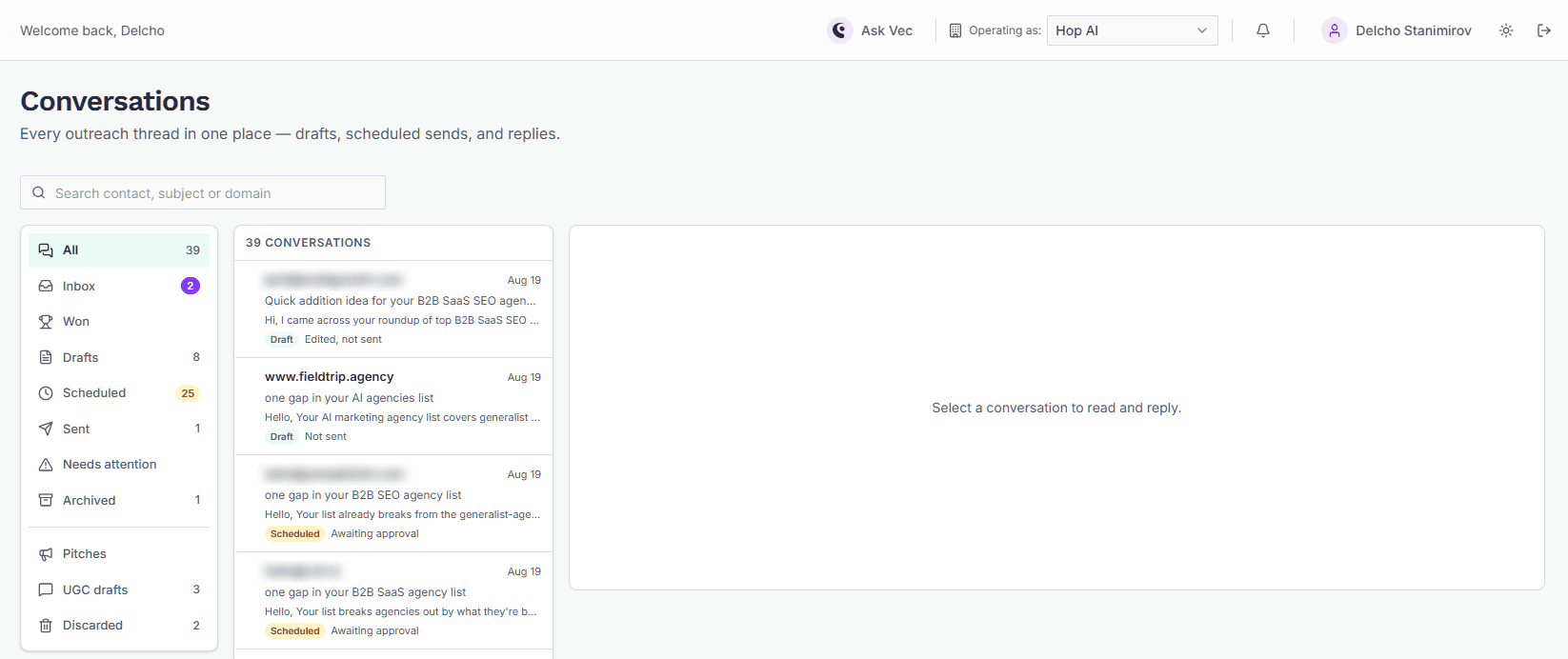
The screen has three columns: folders on the left, the conversation list in the middle, and the conversation itself on the right.
Folders
The rail on the left holds every conversation in the brand, split by what it needs from you. Each folder carries a count, so you can see what is waiting without opening anything.
- All — every active conversation.
- Inbox — a prospect has replied and you have not yet recorded an outcome. The badge counts unread replies.
- Won — conversations that earned a citation. Archived ones stay here, so it is a running ledger of links landed rather than a to-do list.
- Drafts — written but not sent.
- Scheduled — queued to send, including sends waiting for your approval.
- Sent — the pitch went out and nothing has come back yet.
- Needs attention — a send failed, an email bounced, or a reply arrived that could not be matched to a conversation.
- Archived — conversations you have set aside.
- Pitches — pitches of contributed articles to other sites, at every stage. They also appear in the other folders, the way any conversation does. A pitch shows its article's order of sites above the email instead of the page details other outreach has.
- UGC drafts — replies you post yourself, rather than emails GEOforge sends.
- Discarded — opportunities you have ruled out.
The search box above the list filters by contact, subject or domain within the folder you are in.
The list shows 50 conversations at a time. When a folder holds more than that, the header says which of them you are looking at — "51–100 of 120" — and Previous and Next below the list move through the rest. Changing folder or typing a new search takes you back to the first page.
Both the folder and the open conversation are in the page address, so you can bookmark a conversation or paste a link to it, and the browser's back button works the way you expect.
Working on a draft
Open a conversation that has not been sent and the draft editor is right there in the reading pane. What you get depends on the opportunity's type:
- Outreach — an email, with To, CC, Subject and body, that GEOforge sends for you.
- UGC — a reply you post yourself on a forum or community thread.
If nothing has been drafted yet, Generate draft writes a first version from the source page, its context and your brand details. For outreach it also looks for a contact email for the page and fills in To when it finds one.
Refining
The refinement buttons rewrite the draft for you. Outreach offers Personalize, Add proof point and Shorten; a UGC reply offers Regenerate, Make concise and Add proof point. Each one replaces the current text, and you can edit by hand at any point — the body is a plain text field with a word count under it.
Save stores your edits as the final version. Copy puts the draft, and the subject for an email, on your clipboard.
Opportunity details and overrides
The strip under the conversation header shows the type, the score and how often the source is cited. Expand Opportunity details for the rest: the domain, when it was first and last seen, whether your brand is already present on the page, the competitors mentioned on it, the prompt categories it appears in, the score breakdown and any note.
Earlier drafts lists every other draft written for this opportunity. Click one to read it in full and Copy it out — for a draft that was written but never sent, this is the only place the text exists.
How AI references this source sits in the same panel: the recent AI answers that cited this page, each under the prompt that produced it. Click one to read the full answer. It is the case for pitching this page at all, so it is worth a look before you write.
The Overrides panel there changes how the opportunity is classified — its type, a manual priority score from 0 to 100, or a contact email. Changing the type changes which editor you get, so the pane reloads when you save.
Sending an outreach email
Send appears once there is a recipient and a subject. Click it, confirm the recipient, and it goes.
A few things to know about sending:
- Your email signature is appended automatically. Pick which one above the body, or choose No signature. It is added when the email sends, so it will not show in the draft — expand Preview signature to check it.
- Drafts still containing template placeholders like
[Name]or[Your Company]are blocked. Fill them in first. You do not need a sign-off; your signature covers that. - The email goes out as the person on the signature you pick. Once your brand has a verified sending domain, each signature carries its own address on that domain (set under Sends from in email signatures), and a notice above the editor reads Sending as with the name and address the prospect will see. If the chosen signature has no address on your domain, the send is refused and the notice says why. Without a connected domain, outreach uses the shared GEOforge sender.
- BCC copies a colleague in without the prospect seeing them. Use it rather than CC for teammates: a cold email showing a row of copied names reads as a mass send.
- Replies route back into this screen, threaded onto the same conversation.
- Contacts who have unsubscribed are blocked from further sends.
- A send that cannot be delivered lands in Needs attention, and whoever sent it is notified.
After a successful send the conversation moves to Sent and the editor shows the date it went out. If the recipient has already received an email, the button reads Resend.
Approving or cancelling a queued send
Automated outreach queues sends rather than firing them immediately, and some wait for a person to say yes. Those sit in Scheduled, and the conversation shows when it will go out — or Awaiting approval if it has no date yet.
- Send now releases it immediately.
- Cancel send pulls it back out of the queue, leaving the draft intact.
Posting a UGC reply
UGC replies are posted by you, not sent by GEOforge. When the draft reads well, click Open thread & post. That opens the source page in a new tab and marks the opportunity as actioned, so you can paste your reply there. The draft is then labelled Posted.
Reading and replying
Once a pitch has gone out, the conversation shows the message chain instead of the editor: what you sent aligned right, the prospect's replies left, each with a sender and a timestamp. Opening an unread conversation marks it read and updates the Inbox badge.
Email clients usually append the previous message (On <date>, X wrote:…) below each reply. That quoted history is hidden by default to keep the thread readable — Show quoted text under a message reveals it.
The reply box sits at the foot of the conversation. Write your response and click Send reply. It is sent as the same person the prospect has been hearing from, unless you pick a different signature. The button stays disabled until there is text in the box, and a conversation with no contact email on file cannot be replied to.
Your signature is added when the reply sends, so end your text with your closing line and leave the sign-off to GEOforge.
Replying to everyone
When a prospect copies colleagues in, a Reply all button appears above the editor with a count of the extra people on the thread. Clicking it copies them all in. Your own outreach and reply addresses are never included, and anyone who has unsubscribed is left out.
Add Cc copies someone manually — type an address and press Enter, or paste a whole comma-separated list at once. Click the × on a name to drop it. An always-CC address configured in Settings is listed as "Always copied" and added to every send, so it is not a removable name.
Changing who a reply goes to
When a prospect asks you to talk to a colleague, click Edit next to the recipient and enter the new address. Sending there makes that person the conversation's main contact, so later replies default to them. The previous contact is not forgotten — if they write back, their message still lands on this same conversation. Every message shows the addresses it went to, so you can see who was copied on what.
Recording the outcome
Once a pitch has gone out, an Outcome bar sits under the conversation header with three choices: Won, No response and Declined. Click one the moment you know the answer — you do not need to leave the screen to record it.
- Won — the citation was placed. GEOforge schedules a verification re-scrape so we can confirm later that the link is still live.
- No response — you have waited long enough and given up.
- Declined — the contact, or the platform, said no.
Recording an outcome does three things: it moves the conversation out of your Inbox, it files a win under Won, and it feeds the win rate and the charts on Tracking. Until you record one, the conversation stays in the Inbox — that is deliberate, so a reply you have not decided on cannot quietly disappear.
Clicked the wrong one? Click the same button again to clear it. The conversation returns to wherever the pipeline actually left it, and a cleared win stops being re-verified.
You can also record an outcome from the Tracking screen. It is the same result either way — the two screens read and write the same rows.
Archiving
Archive in the conversation header moves a finished conversation into the Archived folder, where Unarchive brings it back. Nothing is deleted; the full history stays intact. An archived conversation with an unread reply stops nagging the Inbox badge.
Archiving and recording an outcome are different jobs, and either one clears a conversation out of the Inbox. Recording the outcome is the one that counts — it is what the win rate is built from — so record it first and archive only if you also want the conversation out of All. A win stays in the Won folder whether or not you archive it.
Discarding an opportunity
If an opportunity is not worth pursuing, click Discard. It drops out of every view, and CiteForge stops drafting or sending for it — including automated outreach. Restore brings it back to whichever folder it belongs in.
Discard replaced the old Skip action, which only changed a status: a skipped opportunity was still queued for automated outreach and could still appear as a top pick. Anything skipped before is now shown as discarded.
Needs attention
Three different things can need a person, and they all land in this one folder.
Failed sends
A send GEOforge could not complete shows the error it got. Fix the draft or the recipient and send again.
Bounced outreach
When an outreach email cannot be delivered, the bounce is recorded rather than lost. The Bounced outreach emails panel shows who the message was to, when it failed, and whether it bounced or was marked as spam by the recipient's provider — plus the reason their mail server gave, where one was supplied. Open the conversation from the row to see the original message.
A bounce usually means one of three things:
- The address is wrong or no longer exists. Use Edit on the recipient to correct it, or find another contact at the same organisation.
- The message was filtered as spam. Repeated spam complaints hurt your sending reputation for every brand, so treat this as a signal to stop contacting that address rather than to retry it.
- A temporary problem at their end. A full mailbox, or a server that was briefly down.
Once you have dealt with a bounce, dismiss it from the row to clear it. Whoever sent the original outreach is also notified when it bounces, so nothing waits for someone to happen to look. Choose how those notifications reach you in Notifications and email preferences.
Unmatched replies
Sometimes a reply reaches your outreach address but cannot be tied to a conversation — the prospect replied from a different address, or changed the subject line. Those appear in the Unmatched outreach replies panel.
Each one shows the sender, the subject and a short preview, and you have two options:
- Assign — search for the conversation it belongs to and file it there. Candidates are ordered to put the same sender, then the same email domain, at the top.
- Dismiss — clear a reply that is spam or irrelevant.
An unmatched reply is counted in the Needs attention badge but is not a conversation row, which is why that count can be higher than the number of conversations in the folder.
If you have nothing here yet
A conversation starts when you draft something or a reply arrives. Until then your opportunities live on the Opportunities screen — see Opportunities, and start a draft from a row there or from Top picks.
To see how your outcomes are converting across the whole brand — win rate, wins by channel and the conversion funnel — use Tracking.