Opportunities
Review, search, triage, and act on the citation opportunities CiteForge discovers for your brand.
The Opportunities tab is your working list of pages where your brand could earn an AI citation — forum threads, listicles, directories, and editorial pages that AI engines already pull from. Each row is one source, scored and classified so you can decide what to pursue first.
This includes pages that AI engines already cite alongside your brand. Being cited next to you in an answer doesn't mean the page mentions you, and those pages are often the strongest pitches. Only your own site and pages whose URL names your brand are left out.
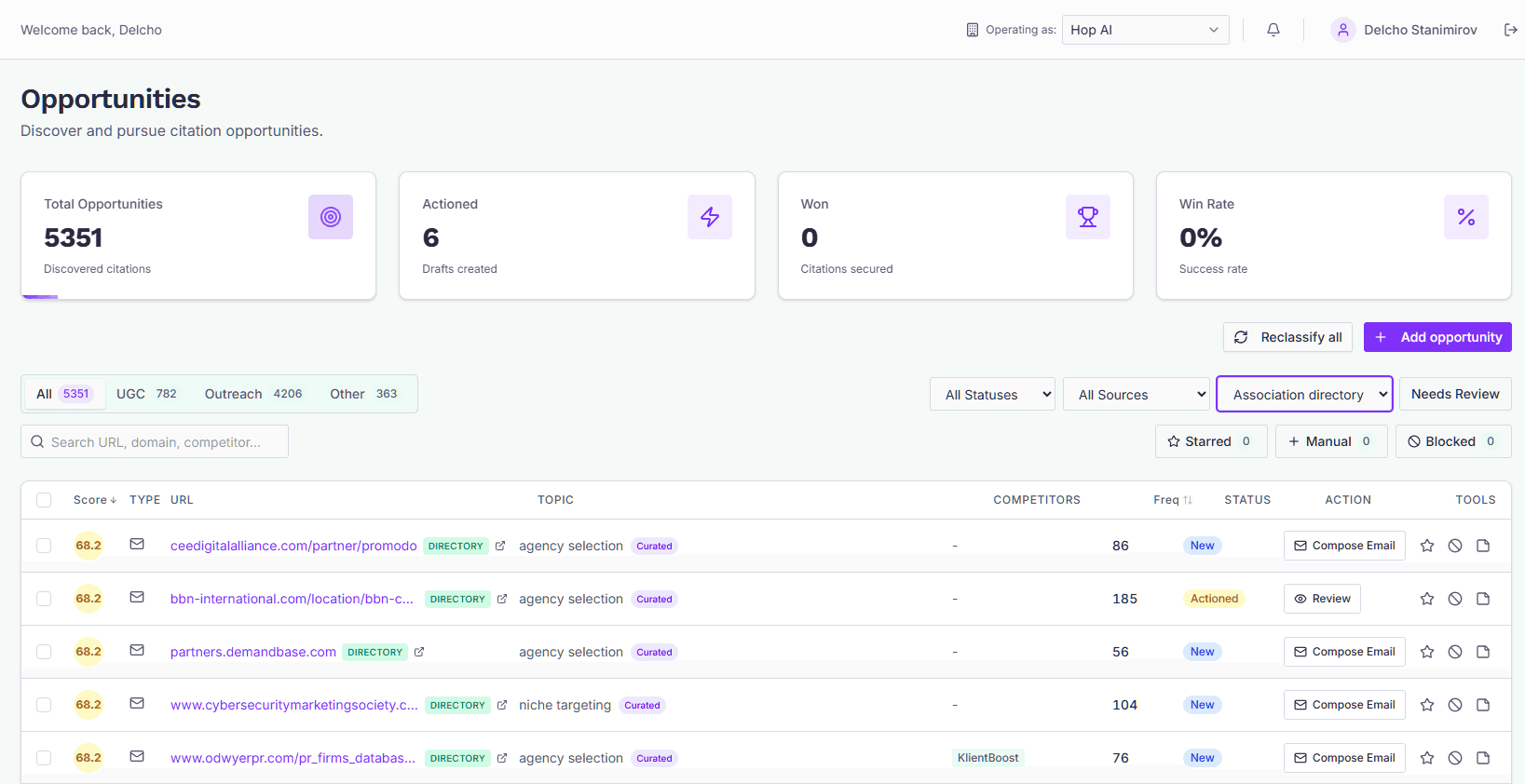
The stat cards
Four cards sit at the top:
- Total Opportunities — every opportunity discovered for this brand.
- Actioned — opportunities you've drafted a reply or email for.
- Won — citations you've recorded as secured.
- Win Rate — won divided by actioned (won, no response, and declined).
Reading a row
Each row shows:
- Score — a 0–100 priority score. Higher means CiteForge thinks the opportunity is more worth your time. A ring around the score means you've overridden it manually.
- Type — UGC (reply on a thread), Outreach (email the page owner), or Other. A dot on the icon means you've overridden the type.
- URL — the source page. Click it to open the conversation for this opportunity; the small badge next to it is the source category (Directory, Listicle, Expert ref, and so on). A "Manual" or "Curated" tag may appear under the topic.
- Topic — the prompt category that surfaced this source.
- Competitors — competitor brands also mentioned on the page.
- Freq — how many times this source has been cited across your Share of Voice measurements.
- Status — New, Actioned, Won, No Response, Declined, or Skipped.
- Action — opens the draft workspace. The label adapts: Draft Reply, Compose Email, Edit Draft, or Review for opportunities you've already acted on.
- Tools — per-row star, discard, and note actions (see Star, discard, and annotate), plus a checkbox for selecting rows to act on in bulk.
Filtering, searching, and sorting
The type tabs (All, UGC, Outreach, Other) carry a count badge each.
Use the search box to find an opportunity by URL, domain, or competitor name.
Three dropdowns narrow the list further:
- Status — filter to New, Actioned, Won, and so on.
- Sources — Content Prompts, Prompts (from your SignalForge Prompt Library), or Manual.
- Source category — Association directory, Editorial listicle, Expert reference, and the rest.
The Needs Review toggle shows only opportunities the classifier flagged as uncertain. The Starred, Manual, and Discarded toggles jump to just those opportunities — click one to filter, click it again to return to the full list.
Sort by clicking the Score or Freq column headers. Clicking again reverses the order.
One per site shows only the best-scoring opportunity from each site. A site cited in six AI answers is otherwise six rows; with this on it is one, so you make one decision per site.
Working in a spreadsheet
Export CSV downloads your opportunities with their score, status, contact, page title and placement details. Add your own notes, contacts and decisions in a spreadsheet, then bring the file back with Import CSV.
Only the columns you decide are applied on import: Placement Status, Placement Price, Placement Currency, Placement Notes, Note, Contact Email, Starred and Blocked. Everything GEOforge works out for itself, such as the score and category, is export-only, so an old copy never overwrites a fresh value. A blank cell leaves the field as it is; it never clears it.
Rows are matched by Opportunity ID, so keep that column. When the import finishes, a message tells you how many rows were updated, and how many were not found or couldn't be read.
Working through a filtered list
Your filters live in the page address, so a filtered view is a real place you can return to. Set up the view you want — say Editorial listicle plus New — and:
- Bookmark it. The bookmark reopens the same filtered list. So does pasting the address to a colleague.
- Leave and come back. Opening an opportunity and then going back — with the browser Back button or the Back to opportunities link — returns you to the same filtered list, scrolled to the row you were on and highlighted for a moment so you can pick up where you left off.
- Skip the trip entirely. Once you're in an opportunity, the top of the screen shows where you are in the filtered list — "3 of 37" — with arrows to step straight to the next one. Action one, click next, action the next. You only go back to the list when you want to.
The sequence is fixed when you enter it, so an opportunity that no longer matches your filter (because you just actioned it) doesn't shuffle the running order underneath you. Going back to the list gives you a freshly filtered view.
Star, discard, and annotate
Each row has quick triage tools to keep the list focused on what matters:
- Star — mark an opportunity for later. Starred rows are one click away via the Starred filter.
- Discard — set aside a single URL you don't want to pursue. It drops out of your normal views, and CiteForge stops drafting or sending for it, including automated outreach. It affects only that URL, not the whole domain, and stays reachable through the Discarded filter, where you can restore it.
- Note — open the Notes & actions panel to annotate an opportunity. Add Your note (a reminder, contact details, why it matters) and an optional Contact email that pre-fills outreach drafts, and toggle Star for later review or Discard, then Save changes. A saved note shows inline beneath the row.
Working in bulk
Tick the checkbox on each row, or the Select all checkbox in the header. A bar shows how many rows are selected, with actions to Star, Discard, or Mark actioned them together; Clear deselects everything.
Adding an opportunity manually
If you already know of a page worth pursuing, click Add opportunity and fill in:
- URL (required) — the page where you could earn a citation.
- Type (required) — UGC, Outreach, or Other.
- Contact email (optional) — pre-fills the recipient when you draft an outreach email.
- Context note (optional) — why the page matters; used as context when drafting the reply.
- Category (optional) and Priority 0–100 (optional).
Manual adds skip the automatic classifier and scorer — you pick the type and score yourself, so the opportunity is always created. Manual opportunities are also protected: a brand-wide reclassify never removes or overwrites them.
If an opportunity already exists for that URL, you'll get a message with a link to open the existing one instead.
Reclassify all (admins only)
Admins see a Reclassify all button. It re-runs the current classifier across every discovered citation source for the brand. Before it starts, a confirmation shows how many sources will be considered and warns if any opportunities you've already acted on have a source the new classifier would now filter out.
What reclassify does:
- Opportunities you've already acted on (actioned, won, declined, and so on) are kept — only their classification fields update.
- New, untouched rows whose source no longer qualifies are removed.
- Manually added opportunities are never touched.
A progress indicator shows how many sources have been processed. When it finishes, the list and stats refresh on their own.
Acting on an opportunity
Click the action button on any row — or the URL — to open that opportunity's conversation, where CiteForge drafts a reply or outreach email you can edit, send, or copy. Everything the old detail screen showed is there too: expand Opportunity details under the conversation header for the source information, the score breakdown and how AI answers reference the page.
If your list is empty, opportunities appear automatically as Share of Voice measurements discover citation sources. You can also seed the list yourself with Add opportunity.