Notifications and email preferences
Stay on top of activity with the in-app notifications bell, and choose exactly which updates reach you by email.
GEOforge keeps you informed two ways: a notifications bell inside the app, and email. In-app notifications are always on; email is yours to tune.
The notifications bell
The bell sits in the top bar. A red badge shows how many unread notifications you have. Open it to see your most recent notifications, newest first — a new comment that mentions you, a finished Share-of-Voice report, a release announcement, and so on.
- Click a notification to jump straight to whatever it's about; it's marked read as you go.
- Use Mark all read to clear the badge in one step.
Choosing what emails you get
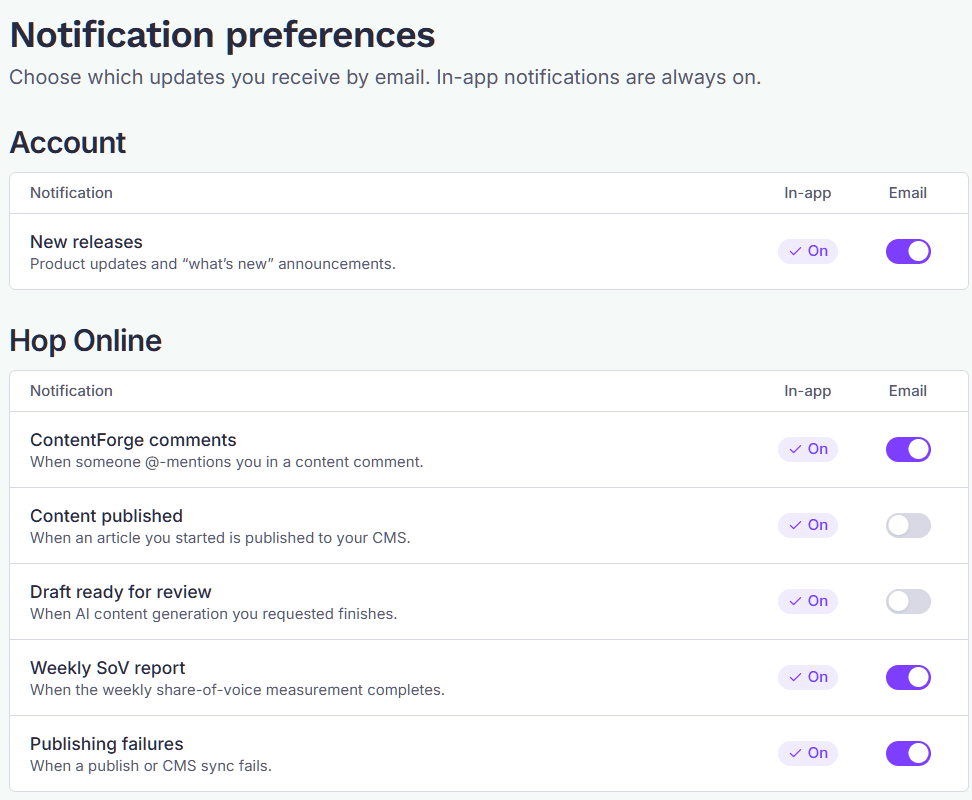
Go to Notifications in your account settings to manage email. Each notification type has its own toggle, so you can keep the ones you want in your inbox and switch off the rest. In-app notifications stay on regardless — the preferences here only control email.
The types you can turn on or off:
Account
- New releases — product updates and "what's new" announcements (like the one that told you about this page).
Per brand — set these separately for each brand you have access to:
- ContentForge comments — someone @-mentions you or replies in a review.
- Content published — a piece goes live on one of your connected sites.
- Draft ready for review — a draft finishes generating and is waiting for you.
- Weekly SoV report — your latest Share-of-Voice measurement has completed.
- Weekly performance report — your weekly AI-visibility digest: what moved, what to fix, and the one thing worth doing this week.
- Publishing failures — a publish attempt didn't go through and needs attention.
Some of these email you by default and some don't — open the page to see the current setting for each and adjust to taste.
The weekly performance report
Once a week, everyone on a brand with this turned on gets a summary of that brand's AI visibility:
- Four headline metrics, with how each has moved.
- A breakdown by engine, so you can see which answer engines you're gaining or losing ground in.
- Five ranked wins and five ranked fixes.
- One recommendation — the single highest-leverage thing to do this week.
It's set per brand, so if you work across several you can take the report for the ones you own and leave the rest.
The report only claims a change when the measurement supports one. Where a movement is inside the range the measurement could vary by anyway, it says so rather than showing an arrow, and where two weeks aren't comparable — a partial measurement cycle, say — the current levels are still reported but the movement claims are withheld. A quiet week genuinely reads as a quiet week.
The figures match what you see on Share of Voice; both are computed the same way.
Unsubscribing from an email
Every notification email has a one-click unsubscribe link that switches off just that type. You can turn it back on any time from the Notifications settings page.
Additional profile settings
The Settings tabs beyond Brand Profile — Competitors, Strategic Goals, Integrations, ContentForge, CiteForge, Velocity, and Agent Prompts.
Use GEOforge from your AI assistant
Connect GEOforge to Claude, ChatGPT, Gemini or another AI assistant, then ask about your visibility, content and citations in plain language.