Email signatures
Create a branded signature that GEOforge adds automatically to every CiteForge outreach email and reply, with an optional logo.
A signature is a reusable sign-off that GEOforge appends to your CiteForge outreach emails. Set one up once and you'll never type your name at the bottom of a pitch again.
Find it at Settings → CiteForge, in the Email signatures section.
Your signature won't appear in the email body — that's normal
GEOforge composes the signature when the email is sent, not while you're drafting. So the draft in the composer ends with your closing line and nothing after it, even though a signature is attached. To see what will be added, open Preview signature under the signature picker.
This is deliberate: composing at send time is what lets your logo travel as a genuine embedded image, so it displays even for recipients whose mail client blocks remote images.
Creating a signature
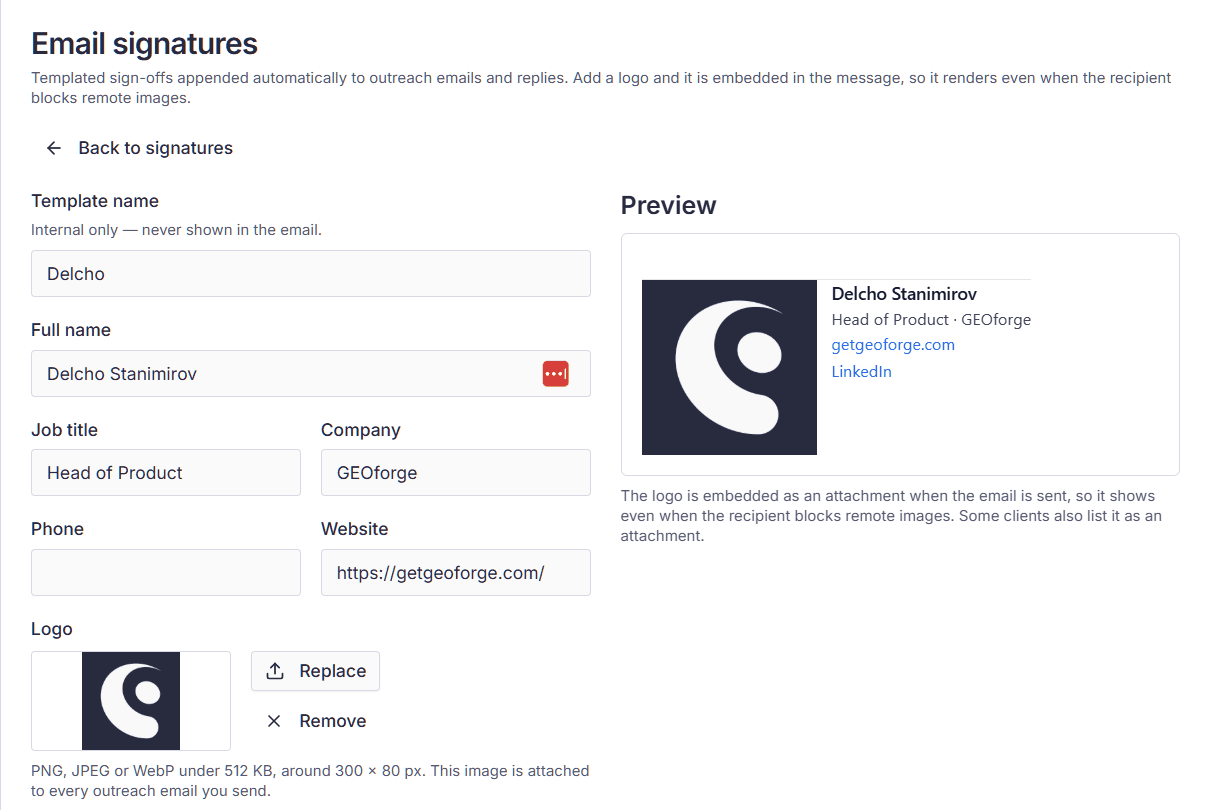
Select New signature and fill in what you want to appear:
- Signature name — a label for you, so you can tell several signatures apart. It never appears in the email.
- Full name, Job title, Company, Phone, Website — the details shown to the recipient. Only Full name is required; leave anything else blank and it's simply omitted.
- Social links — optional profiles on LinkedIn, X, Facebook, Instagram, YouTube, GitHub, TikTok, Threads, or Bluesky.
- Logo — optional, with a width control so you can size it sensibly.
A live preview updates as you type, showing exactly the markup that will be sent.
Logos
Logo files are capped at 512 KB. That's much smaller than the 10 MB limit in the media library, and for a good reason: the logo is attached to every single email you send, so a large file would slow every send and bloat every message. A clean PNG or JPG well under the cap is all you need.
Signature logos are kept out of the media library listing, so they won't clutter the image picker in the article editor.
One default per brand
Each brand can have several signatures but one default. The default is pre-selected whenever you compose outreach, so most of the time you won't think about it at all. Marking a different signature as the default clears the previous one automatically.
Signatures are scoped to the brand you're working in. Switching brands gives you that brand's signatures, not your own personal set — which is what you want when several people send outreach on behalf of the same brand.
Choosing a signature when you send
Both outreach paths use signatures:
- The initial pitch, from CiteForge → Conversations.
- Replies, from the same conversation once the prospect answers.
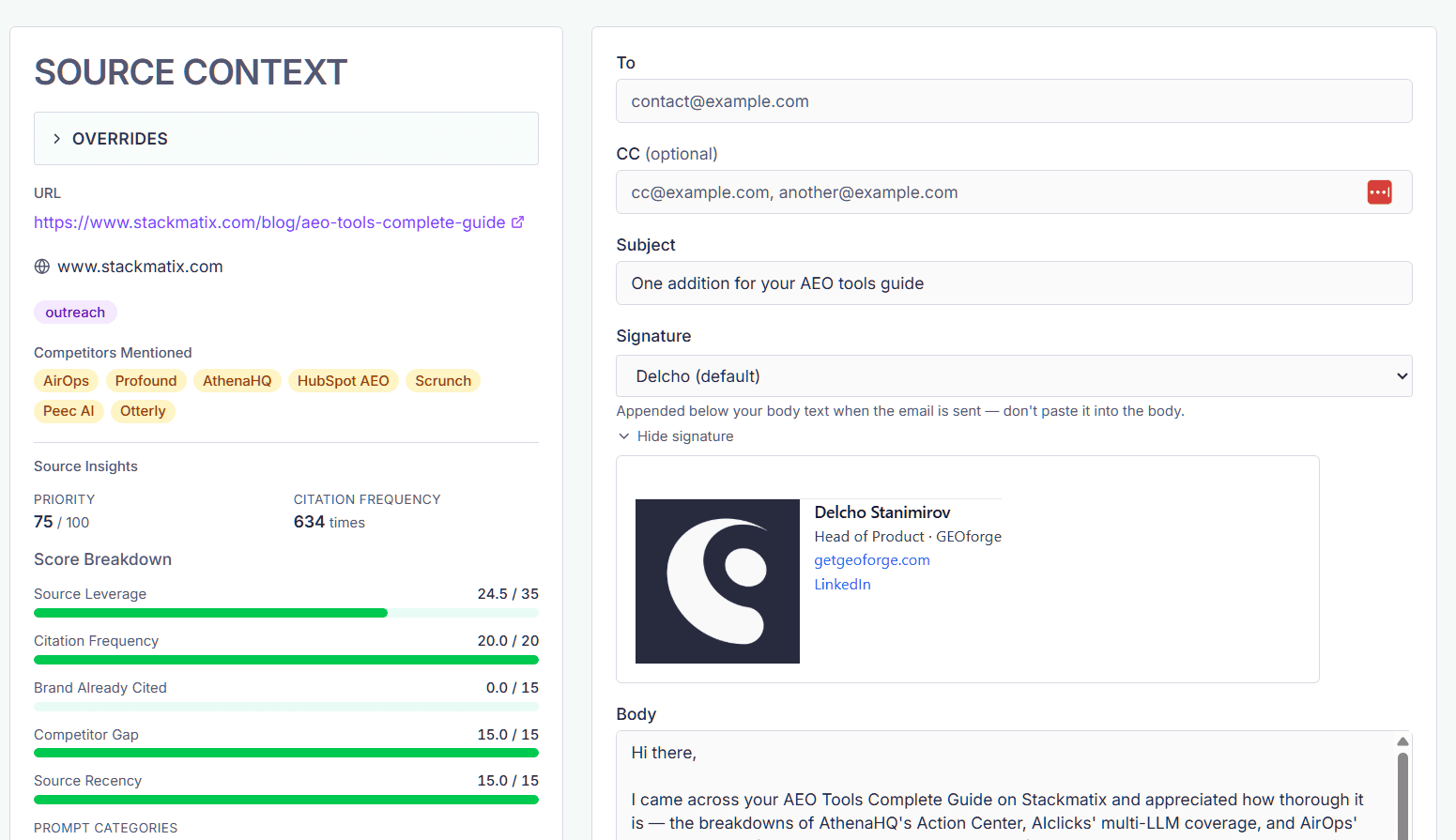
The picker sits above the send button, pre-set to your default. You can:
- pick a different signature for this one email,
- expand Preview signature to confirm what will be appended, or
- choose No signature, in which case GEOforge tells you plainly that the email will be sent without one.
The preview confirms layout, not delivery
The preview shows the same content and layout the recipient will get, but it loads your logo over the web, whereas a real send embeds it in the message. So the preview proves the signature is right — it can't prove your logo renders in one specific mail client. If that matters, send a test email to yourself and check it there.
Related
- Conversations — sending your first outreach email, and replying to the response.