Dashboard
How to read the GEOforge dashboard — module velocity, priorities, activity, and the right-hand sidebar.
The dashboard is the first screen you land on after signing in. It answers one question: is your company making forward progress in AI search this week, and if not, what should you do next?
It also provides an overview of recent activities and your current "Share of Voice" score.
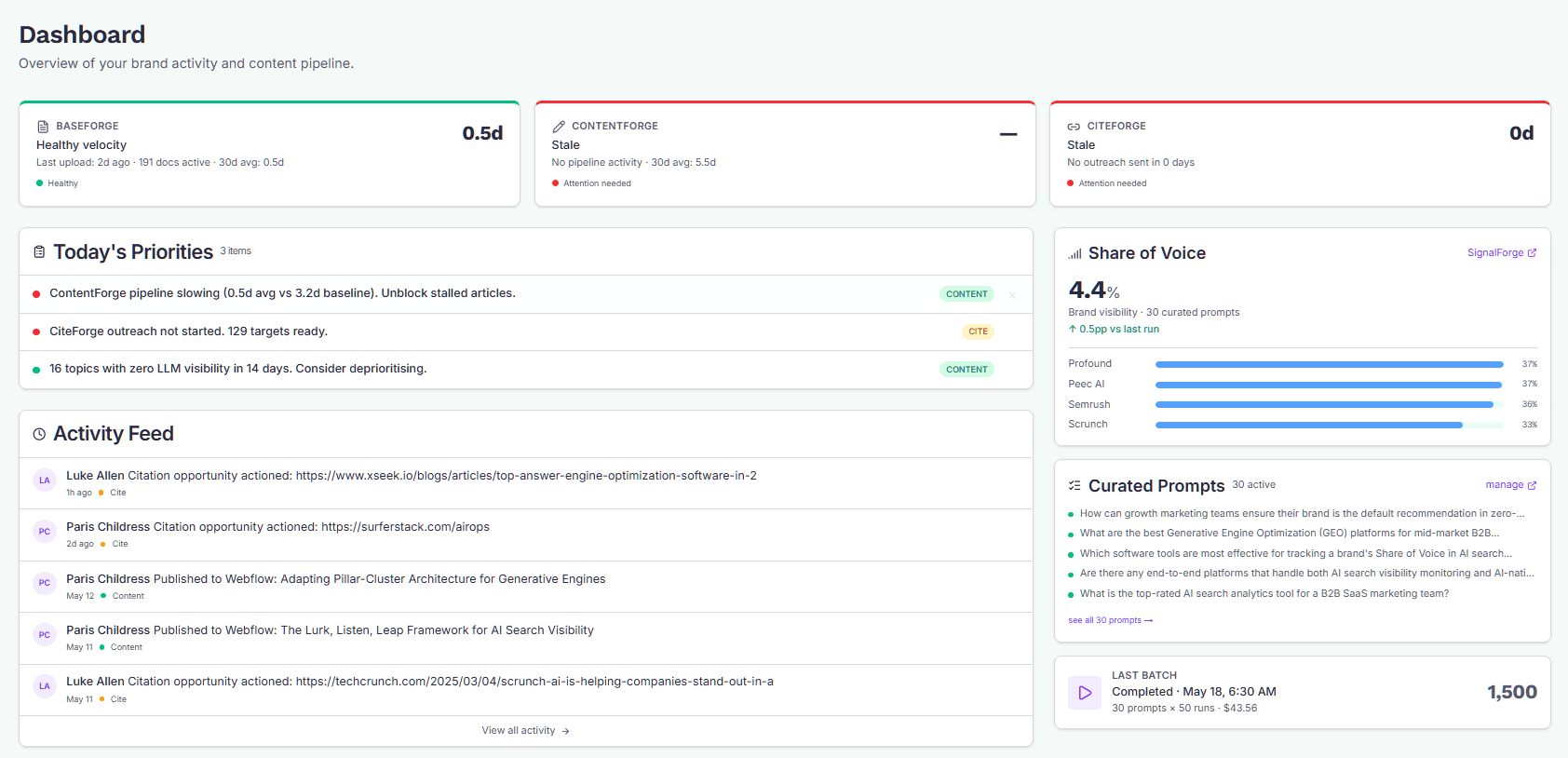
The layout
The page has two rows:
- Module velocity cards across the top — one each for BaseForge, ContentForge, and CiteForge.
- A two-column body below:
- Left: your Priorities to-do list and the Activity feed.
- Right: Share of Voice summary, prompts preview, next SoV batch, and an integrations nudge.
Module velocity cards
The three cards at the top score how active each module has been recently. Each card shows:
- A headline number (for example, files ingested, articles shipped, or outreach sent).
- A short description of what that number means.
- A health indicator: green (good), amber (warn), or red (critical). Grey means GEOforge is still establishing a baseline — you'll see this when the brand is new or hasn't accumulated enough data yet.
Click any card to jump into that module.
Velocity scores are recalculated on demand when you load the dashboard, but no more than once an hour. If you've just finished a burst of work and the card still looks stale, give it a minute and reload.
Priorities (your to-do list)
The Priorities panel surfaces concrete actions to take, sorted by urgency:
- Critical (red) — something is materially stuck or overdue. For example: no content published in 15+ days, approved articles sitting unpublished, or BaseForge hasn't received any new knowledge in 8+ days.
- High (amber) — pace is slowing or there's a backlog to clear. For example: Fireflies transcripts waiting for approval, or outreach below your usual weekly rate.
- Low (green) — nice-to-haves and quality nudges, like connecting Google Search Console or reviewing low-visibility topics.
Each item links straight to the screen where you'd act on it.
To get help with an item, click the small GEOforge logo at the end of its row. That opens Vec, GEOforge's assistant, already briefed on that item. The panel header says this too.
Among the items: when the Writer finds that drafts came out in the wrong language, a High item tells you how many and links to Language Check.
You can dismiss an item if you're aware of it and don't want it in your face. Hover the row and click the × button on the right edge. Dismissed items hide for 24 hours and then auto-resurface if the underlying condition is still true. There's no permanent "ignore" — the point is to keep the list honest.
Activity feed
Below Priorities, the Activity feed is a chronological log of what's happened in the account — file ingestions, articles moving through the pipeline, outreach emails sent and so on. Each entry shows who did it and a small coloured dot marking which module it belongs to.
The dashboard shows the five most recent events. Click View all activity at the bottom to open the full history, where you can filter by module and page through older events.
Use the activity feed to answer "what changed since I was last here?" — especially useful on shared accounts where multiple teammates are working.
Right-hand sidebar
The right column gives you a quick read on visibility and what's queued up:
- Share of Voice summary — your current overall SoV across tracked prompts, with the change since the previous measurement, and bars comparing your score with your top competitors' Share of Voice, measured the same way. Click through for the full SignalForge view.
- Prompts preview — a snapshot of your prompts and how many are approved for SoV tracking. If this number is low, that's your cue to head into SignalForge and approve more.
- Next batch — when the next scheduled SoV measurement run will fire, and how many prompts it will cover.
- Integration nudge — appears when a useful integration (such as Google Analytics or Google Search Console) is not yet connected. Dismiss it by connecting the integration from Settings.
When the dashboard looks empty
If you've just created the account, expect to see:
- Grey "Establishing baseline" cards across the top.
- A short Priorities list focused on first-time setup (uploading to BaseForge, connecting integrations).
- An empty Activity feed.
This is normal. The dashboard fills in as you upload sources, approve prompts, and start publishing — typically within the first week of use.