ContentForge settings
Choose which content formats your brand commissions, the language and voice of your drafts, whether the Writer uses web search, and check draft languages.
The ContentForge tab under Settings holds the controls for the Writer: the content formats your brand commissions, the language and voice your drafts are written in, whether the Writer may use web search, and Language Check. The images your articles use are in their own tab, Media Library.
Only admins (and superadmins) can change these. Other users see them read-only.
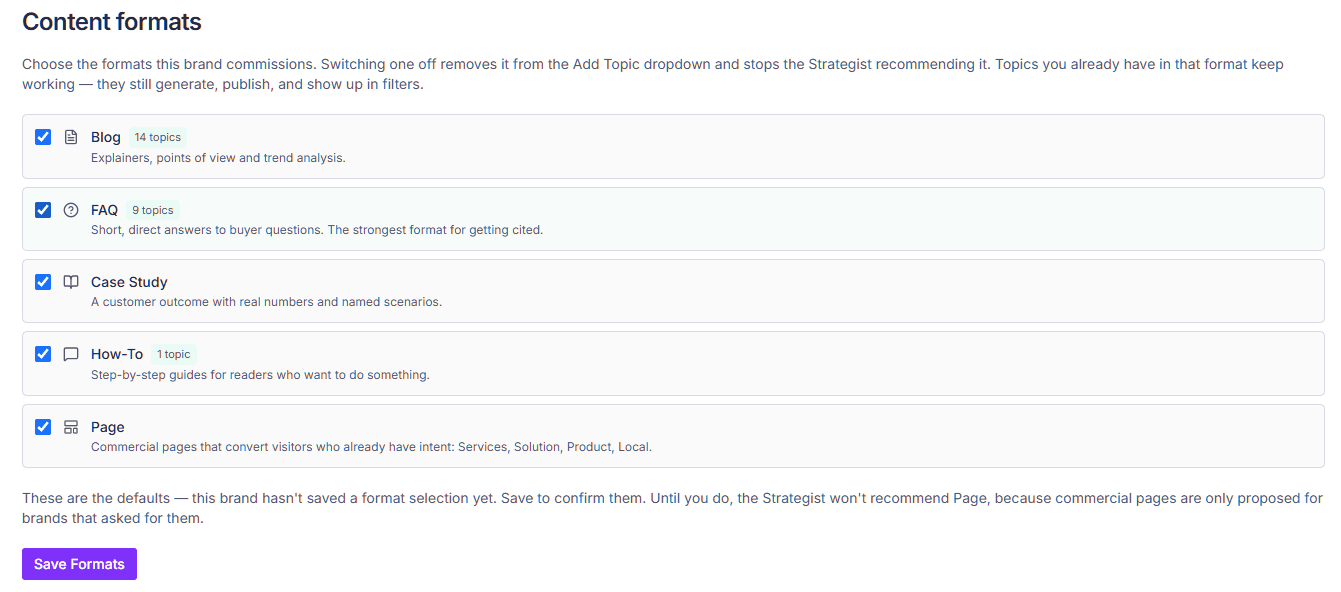
Content formats
GEOforge writes in five formats:
- Blog — explainers, points of view and trend analysis.
- FAQ — short, direct answers to buyer questions. The strongest format for getting cited.
- Case Study — a customer outcome with real numbers and named scenarios.
- How-To — step-by-step guides for readers who want to do something.
- Commercial Page — service, solution, product and local pages that convert visitors who already have intent. (Called Page until October 2026.)
Each one shows how many topics you currently have in it, which is the number to look at before switching one off.
Switch a format off and it disappears from the Add Topic dropdown and the Generate Recommendations menu, and the Strategist stops recommending it.
Topics you already have in that format keep working. They still generate, publish, and show up in filters — switching a format off only stops new ones being commissioned.
Saving your selection
Until you save a selection, your brand is running on defaults. The panel says so.
One behaviour worth knowing: the Strategist won't recommend Commercial Pages until you've saved. They're only proposed for brands that asked for them, so leaving the defaults in place means you won't see Commercial Page recommendations even though the format is available.
The Generate Recommendations menu follows the same rule: Commercial Page is listed there only once you've saved with it ticked.
If you want Commercial Pages, save the form with Commercial Page ticked.
Page types
A Commercial Page topic carries a page type as well as a format, which the other formats don't:
- Services — a service or capability the brand sells, with its own process and deliverables.
- Solution — an offer framed around one buyer problem or use case, possibly spanning several services.
- Product — a specific named product, with its own features rather than a bundled service.
- Local — a location-specific variant of an offer. This needs genuinely local detail, not a swapped city name.
Publishing Commercial Pages
Commercial Pages publish to their own destination rather than to your blog. On a connected CMS you map that destination separately — a WordPress site, for example, can send Commercial Pages to a different post type from your articles.
If Commercial Pages aren't publishing where you expect, the mapping is the first thing to check, under Settings → Integrations.
Language and voice
Content Language
The language every draft is written in — body, headings and SEO metadata.
On Auto — match the topic title, the Writer matches whatever language each topic's title is in. Set a specific language when your knowledge base is in a different language from your titles, which is the case where matching alone can drift: the Writer has two signals pointing in different directions and no instruction to settle it.
Whatever you choose is passed to the Writer as an instruction. For around 34 widely-used languages GEOforge also checks the finished draft and corrects it automatically if it came out wrong. For the rest the instruction still applies, but the automatic check can't verify the result.
If you change this and want existing drafts brought into line, Language Check finds the ones that don't match and rewrites them.
Brand Voice Guidelines
Free-form guidance on how the Writer should sound when drafting content for this brand: tone, register, words to prefer or avoid, point of view, formatting preferences. Changes take effect on the next draft generated.
Concrete examples beat abstract instructions. "Avoid hedging words like 'might' and 'could'" is more useful than "be confident." Up to 5,000 characters.
Web search
When web search is on, the Writer can look up public web pages while drafting, alongside your BaseForge knowledge base. New brands start with it on, and while it's on, a note on the Topic Recommendations page says so and links to this setting.
It helps while your knowledge base is still thin, because the Writer can fill gaps it would otherwise leave. The trade-off is verifiability: web sources can't be checked against your own material, so drafts that use them score lower on factual accuracy. (They tend to score slightly higher on Information Gain, because they bring in material your knowledge base doesn't have.) Once your knowledge base covers the topics you write about, turn it off.
Searches per article sets how many searches the Writer may run for one draft, up to 2. Each search can bring back several pages, so the limit keeps cost and drafting time in check.
Language Check
Finds drafts written in a different language from the one set for your brand, and rewrites them in place. Click Check drafts to scan. See Language Check for the details.
Related
- Language Check — find drafts written in the wrong language.
- SignalForge settings — where and in what language the Google AI engines are asked.
- Media Library — the images your articles use.
- Brand profile settings — your brand's name, website, sitemap and description.