Developer API
Create API keys on the Developers page and use the GEOforge API to read your data and run every module from your own scripts and tools.
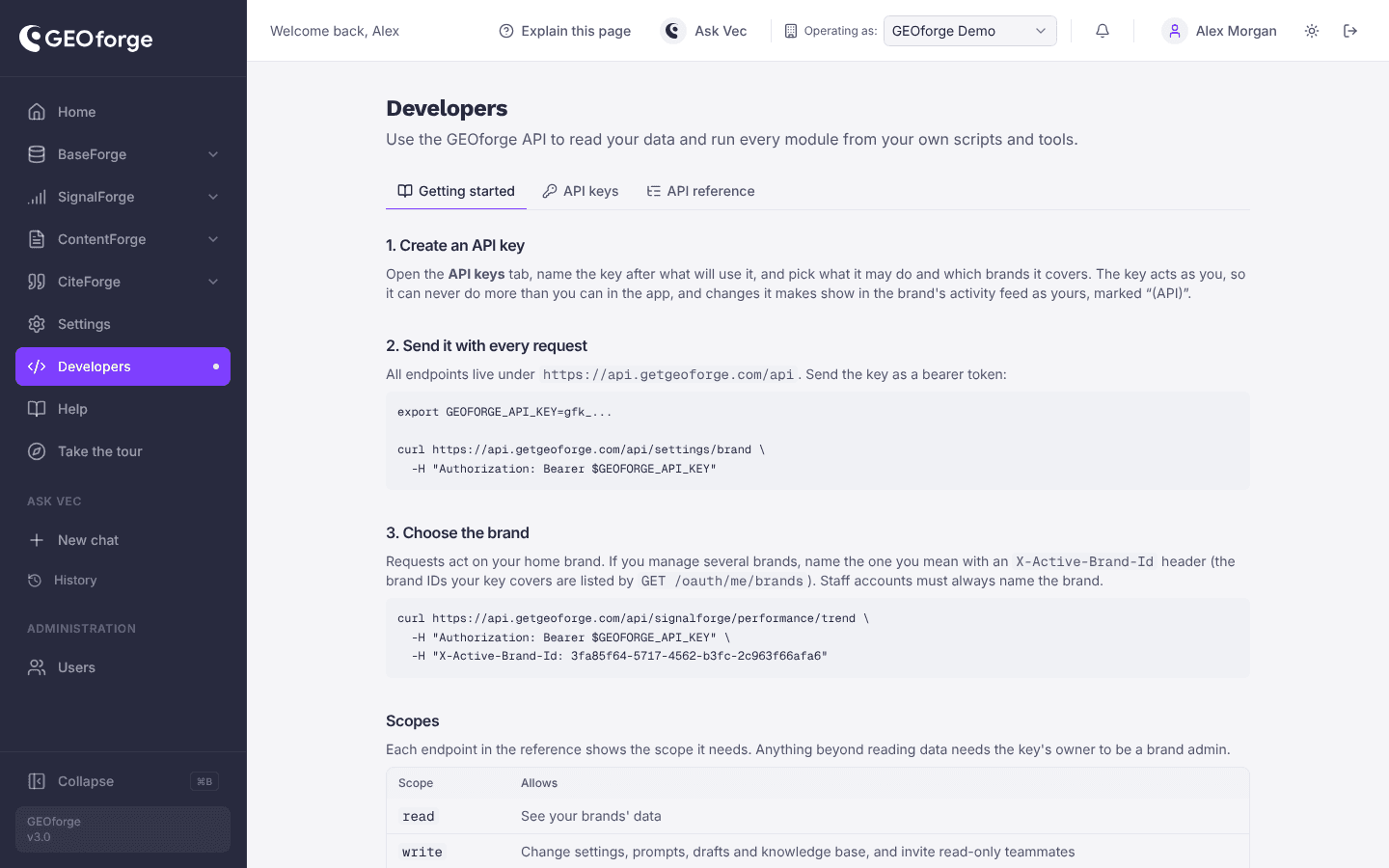
The GEOforge API lets your own scripts and tools do what you do in the app: read your Share of Voice, prompts and content, and make changes, start AI jobs, publish or send email if you allow it. Everything happens on the Developers page in the sidebar, which has three tabs: Getting started, API keys and API reference.
If you want to talk to GEOforge in plain language instead of writing code, connect your AI assistant. See Use GEOforge from your AI assistant.
Create an API key
Open the API keys tab and fill in Create a key:
- Name — name it after what will use it, such as "Nightly reporting sync".
- Access — tick what the key may do: Read data, Make changes, Start AI jobs, Publish and Send email. Give each key only what it needs.
- Brands — Every brand I can access, or Only the brands I choose.
- Expires after — the key stops working after this many days, between 30 and 365.
Click Create key. Your new key is shown once: copy it now, because it won't be shown again. Click Try it in the API console to use it straight away.
Your keys are listed under Your API keys, with what each may do, its brands, and when it was created, last used and expires. Click Revoke to stop a key at once. Anything using it stops working immediately, and you can create a new key at any time.
Make a request
Send the key with every request as an Authorization: Bearer header. Requests act on your home brand. If you manage several brands, name the one you mean with an X-Active-Brand-Id header. The Getting started tab shows the address to call and a worked example.
Endpoints that start AI work, such as writing an article or measuring Share of Voice, return as soon as the job is queued. Check the item they act on, such as the article, to see the job finish.
The API reference and console
The API reference tab lists every endpoint a key can reach, grouped by module, with a search box. Endpoints for a module your brand's plan doesn't include are marked Not in your plan.
The API console at the top of the tab holds the key to try requests with, and optionally a brand. Open any endpoint and click Send request to run it against your own data and see the response, or copy it as a curl command.
Plans and limits
The API follows your brand's plan exactly as the app does: the same modules, monthly article quota, prompt and competitor limits. A brand whose trial has ended or whose subscription has lapsed can still read data but can't make changes.
Making changes needs the key's owner to be a brand admin. On top of your plan's quotas, each key has an hourly budget for each kind of action, so a script stuck in a loop stops early. Reading data isn't limited this way, and failed requests don't count. The Getting started tab lists the budgets and what each error code means.
Keeping keys safe
- Store keys in a secrets manager or environment variable, never in code.
- Give each script its own key, with only the access and brands it needs.
- Changing your password revokes every key you created.
- Every request a key makes is recorded, and you can revoke a key at any time.
What to ask your AI assistant
Example requests for GEOforge in Claude, ChatGPT or Gemini, what an assistant can change for you, and what you still do in the app.
Social channels
Confirm the YouTube, LinkedIn and Facebook channels that belong to you and your competitors, so AI citations of them count in Share of Voice.