Prompt library
Generate, approve, and manage the prompts SignalForge uses to measure your Share of Voice.
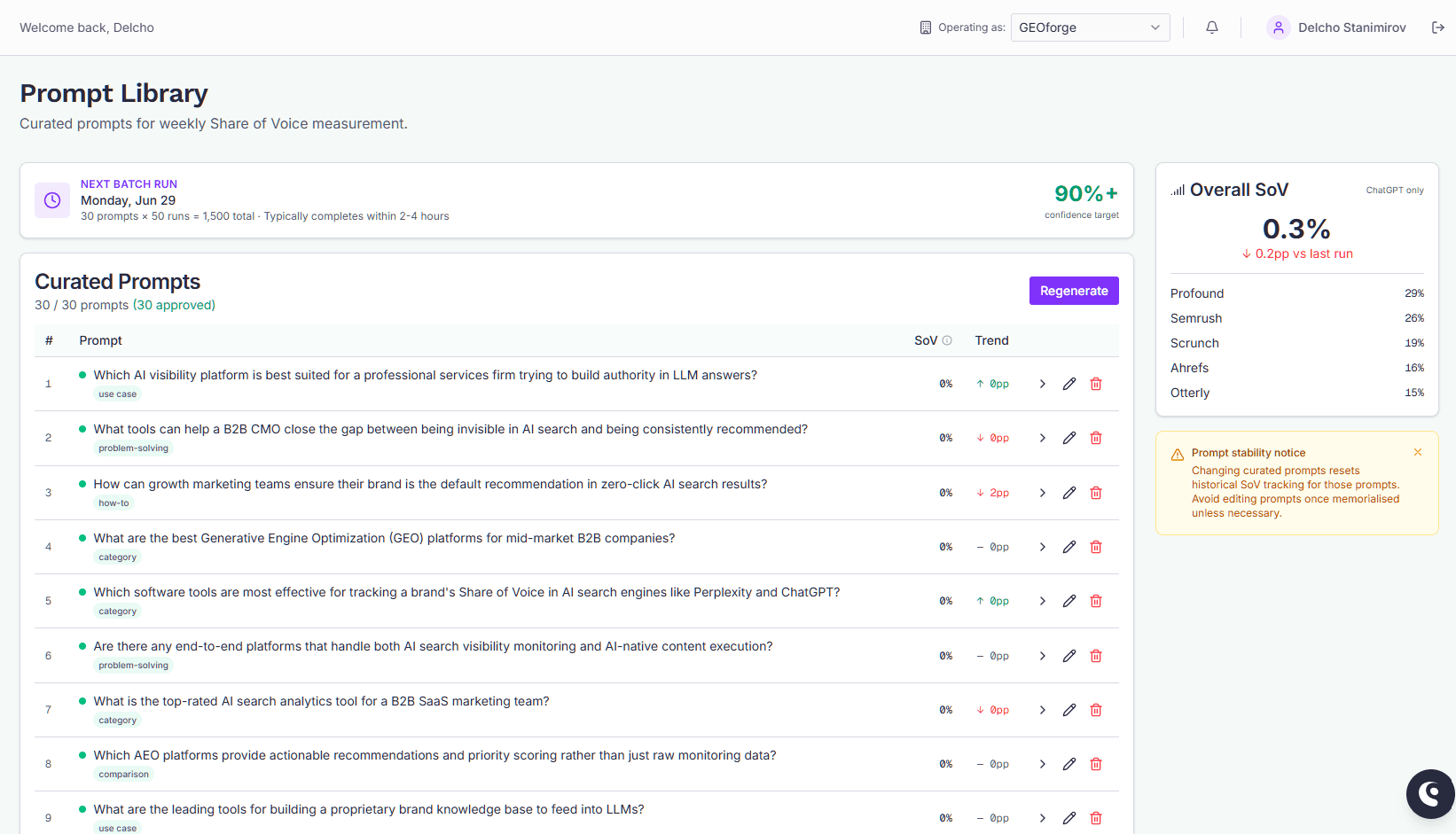
The Prompt Library holds the prompts SignalForge runs to measure your brand's Share of Voice (SoV). Each approved prompt is asked of AI engines many times per measurement batch, and your brand's share of the resulting mentions becomes its SoV score.
You can hold up to 30 prompts per brand.
Generating prompts
If you have no prompts yet, click Generate Prompts. SignalForge crawls your site, runs keyword research, and proposes 30 prompts that reflect how people ask AI engines about your space.
Generation runs in the background and usually takes a few minutes. The page updates on its own when it finishes — you don't need to refresh.
Approving prompts
Generated prompts start unapproved. Only approved prompts are measured.
- Approve one — use the check icon on a row.
- Approve All — approves every unapproved prompt up to the 30 cap.
Approving your first prompts kicks off a measurement batch right away, rather than waiting for the next weekly run. After that, batches follow the weekly schedule.
A coloured dot next to each prompt shows its state:
- Emerald — approved and has an SoV score.
- Amber — approved, waiting for the next batch to produce a score.
- Grey — not yet approved.
Adding your own prompts
Click Add Prompt (or + Add prompt at the bottom of the table) to write a custom measurement prompt. Custom prompts count toward the 30 cap and are unapproved until you approve them.
Tagging prompts
Tags are your own labels for grouping prompts — "bottom of funnel", "competitor comparison", "product line A", whatever matches how you think about the set. A prompt can carry several.
To tag a prompt, click the dashed + Tag control on its row. Tick any existing tags, or type a name and press Enter to create a new one. Click the small × on a chip to take that tag off the prompt.
If you type the name of a tag that already exists and press Enter, that tag is simply ticked rather than created again.
Above the table, the tag row lets you filter: click one or more tags to show only the prompts carrying them, and Clear to go back to the full list. The number beside each tag is how many of your current prompts carry it.
Manage, at the end of the tag row, opens a small panel for renaming, colouring and deleting tags. Colours come from a fixed palette so every tag stays readable in both light and dark mode; pick the dashed swatch to go back to no colour.
A few things worth knowing:
- Tags are per brand. Each brand keeps its own set, and tags are never shared between brands.
- Tag names are case-insensitive, so "BOFU" and "bofu" are the same tag. Renaming or recolouring one from Manage keeps it on every prompt that carries it.
- Deleting a tag (also under Manage) only removes the grouping. Your prompts, their scores, and your Share of Voice history are untouched.
- You can hold up to 50 tags per brand, and up to 10 tags on any one prompt. If you reach the cap, delete a tag you no longer use to free a slot.
Tags are separate from the small grey category label you may see on a row. That one is written by the prompt generator to describe what it produced, and isn't editable.
Once prompts are tagged, the Share of Voice page gains a Share of Voice by tag table — see Share of Voice.
Editing and deleting
Use the pencil icon to edit a prompt's text and the trash icon to delete it.
Deleting a prompt retires it: it leaves the list, frees its slot against the 30 cap, and stops being measured — but everything it already measured is kept, so past weeks on your Share of Voice trend keep the values they were reported with. A retired prompt simply stops appearing in the per-prompt table from then on.
Editing a prompt's text is the change to be careful about: you're now measuring a different question, so the prompt's own trend is no longer comparing like with like. The amber Prompt stability notice in the sidebar is a reminder of this. Avoid editing prompts you've been measuring for a while unless you need to.
Regenerating
Once you have prompts, the generate button becomes Regenerate. Regenerating:
- Removes all unapproved prompts.
- Keeps your approved prompts.
- Generates new prompts to fill the remaining slots up to 30.
You'll see a confirmation explaining exactly how many prompts will be removed and added before it runs.
Reading the SoV columns
Each prompt row shows two measurement columns:
- SoV — your brand's weighted share of all brand and competitor mentions across runs in the latest batch. Direct mentions count for more than citations or indirect mentions. This is a different number from the mention rate shown on the Share of Voice page.
- Trend — the change in SoV versus the previous batch, in percentage points (pp).
A -- means the prompt hasn't been scored yet.
Expand any row (the chevron on the left of the action buttons) to see that prompt's SoV history over time, with 30-day, 90-day, and 1-year ranges.
The summary line beneath the table totals how many prompts are scored, awaiting the next run, and unapproved.
What buyers ask on your calls
If you import sales calls from a connected notetaker (Fireflies, Gong, Fathom, Granola, Avoma, Grain or Chorus, in BaseForge), each call is read for the questions and objections the buyer side raised. Only what the buyers said is read, not your own team. Every question is rewritten as a general question with no names, companies or contact details in it. When the same question comes up on several calls it's shown once, with a count of how many calls raised it.
The list sits under your prompts, most-asked first:
- Track adds the question to your prompt library as an approved prompt, so the next batch measures how AI assistants answer it. It counts toward your plan's 30 prompts. If you're at the limit, retire a prompt first.
- Dismiss hides the question. The Strategist stops seeing it too.
- Topic suggested means the Strategist has already built a ContentForge topic from it.
New calls are read automatically when you import them. Calls imported before this feature arrived can be read with the Read N calls button, which only admins see because each call costs an AI request.
The sidebar
Overall SoV shows your current combined score and the change versus the last run, followed by your top five competitors. The card combines every AI engine your brand is measured on (labelled All engines).
The competitor figures are their Share of Voice, measured exactly the way yours is, so you can compare them with your score directly. They match the latest point on the Brand vs. competitors over time chart in Share of Voice. (Until October 2026 this list showed how often each competitor was mentioned at all, a much higher number that wasn't comparable with your score.)
Current Batch appears only while a batch is running. It shows the prompt count, runs per prompt, total runs, start time, and a rough ETA, along with a status of Queued, Submitted, or Processing.
Batch scheduling
When you have approved prompts and no batch is running, a Next Batch Run banner shows when the next measurement will run, how many total runs it covers, and roughly how long it should take. Batches run weekly on Monday at 3:00 UTC.
The total run count is your approved prompt count multiplied by the runs per prompt — more runs give a more stable, higher-confidence score.
Where your scores show up
The per-prompt SoV here is the same data that powers the fuller charts, win/loss table, and competitor comparison on the Share of Voice page.
The link to that page lives in the sidebar.