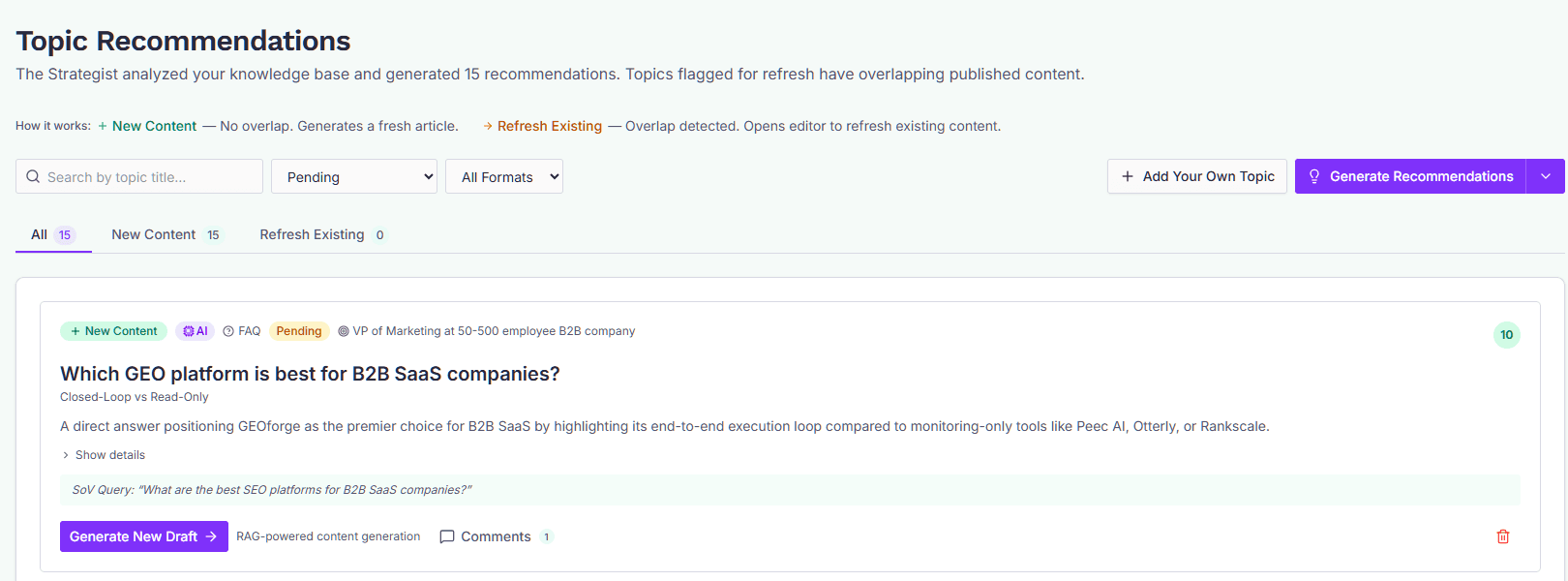
Topic Recommendations
How the Recommendations page generates and triages the pending content topics from your knowledge base.
The Recommendations page is where new content topics enter your pipeline. Each topic is either an idea The Strategist generated from your knowledge base or one you added yourself. From here, you triage what's worth writing and hand the survivors off to the rest of the pipeline.
The page lists only topics still awaiting a decision. The moment you generate a draft, the topic leaves this list and continues its life on the Pipeline board — so what you see here is always the open backlog, never work already in flight.
What's on the page
At the top you'll see a one-line legend explaining the two kinds of topic:
- New Content — no meaningful overlap with anything you've already published. The Writer will generate a fresh article.
- Refresh Existing — overlap detected with an existing topic or published URL. Opens the editor in refresh mode against the matched original.
Below the legend are filters, an action bar, and tabs that split the list by topic type. The list itself shows one card per topic with its title, format, and type. On screens 1280px and wider the cards sit in two columns, so a full backlog takes about half the scrolling.
Generating Recommendations
Click Generate in the action bar to ask The Strategist for a new batch. It analyzes your BaseForge knowledge base and your brand's strategic goals, then returns prioritized topic ideas.
A few things worth knowing before you generate:
- Generation is rate-limited to 5 requests per minute per user.
- If your knowledge base is empty, generation fails with a clear error — load BaseForge first.
- The Strategist only proposes topics your knowledge base can support, and leaves out the rest rather than offering topics that would fail when you generate the draft. When it leaves some out, the result line says how many (N skipped: not enough in the knowledge base) and suggests adding knowledge on those subjects. With web search off, the Writer can use only your knowledge base, so the Strategist is stricter, and the result line also suggests turning web search on.
- Each generated topic is automatically checked against your existing topics and published content. Overlapping ideas come back tagged as Refresh Existing instead of being silently dropped.
- New topics are queued for prompt sanitization in the background. They appear in the list immediately; the sanitized SoV query is added shortly after.
- If you import sales calls from a notetaker, the Strategist also sees the questions buyers ask most on those calls. A topic built from one carries a From sales calls badge, and Show details lists the questions it answers. Each question seeds at most one topic, so the next run moves on to others. See Prompts for where the questions come from.
- The dropdown next to Generate lets you narrow the batch to particular formats. Commercial Page is listed there only if you've switched it on and saved under Settings → ContentForge. Otherwise the Strategist wouldn't propose one anyway.
Adding your own topic
Click Add Your Own Topic to create a single topic by hand. You provide:
- Title (required, ≤ 500 characters)
- Format — Blog, FAQ, Case Study, How-To, or Commercial Page (with a page type: Services, Solution, Product, or Local)
- Description (optional, ≤ 2000 characters)
- Target URL (optional)
If you supply a target URL, GEOforge always treats the topic as a refresh of whatever lives at that URL — even when the title doesn't semantically match an existing topic. GEOforge resolves the URL in two steps:
- If the URL matches an existing GEOforge topic's published URL (normalized — scheme,
www., and trailing slashes ignored), the new topic is linked to it as a refresh. - If there's no match, GEOforge fetches the live page and generates refresh instructions from its actual content.
High-quality source block
If the target URL is a citation-backed, clinical, or peer-reviewed page, the single-topic uploader blocks the refresh and asks you to confirm. Refreshing pages like that risks dropping references, tables, and named programs. To override, re-submit with preservation mode enabled — the Writer will keep citations, tables, and named programs intact.
Bulk upload from CSV
For larger batches, use the CSV bulk uploader. The accepted columns are:
| Column | Required | Notes |
|---|---|---|
title | yes | ≤ 500 chars |
format | no | blog, faq, case_study, or how_to (defaults to blog) |
description | no | ≤ 2000 chars |
target_url | no | Treated as a refresh, same as the single-topic flow |
Limits and behavior:
- Up to 50 rows per upload, 1 MB max file size, UTF-8 encoded.
- Rows with a
target_urlget the same URL-matching and refresh-instruction logic as the single-topic uploader. - If a row's
target_urlis a high-quality source, that row is rejected with an error — the rest of the batch still imports. To refresh a high-quality page, use the single-topic uploader so you can opt into preservation mode. - Invalid rows are reported back per-row (row number, title, error) so you can correct and re-upload only the affected rows.
A starter template is available from the bulk-upload dialog.
Filtering the list
The filter row narrows what you see without changing what's been generated:
- Search — matches topic titles (debounced).
- Format — Blog, FAQ, Case Study, How-To, or Commercial Page. Only the formats enabled under Settings → ContentForge are offered. A Commercial Page needs a page type as well, and the Strategist proposes Commercial Pages only when you ask for them explicitly — they sell rather than educate, so they are never mixed into a batch to add variety.
Filters combine, and pagination resets to page 1 whenever a filter changes.
The All / New / Refresh tabs
Above the list, three tabs split topics by type:
- All — everything.
- New Content — topics that will generate a fresh article.
- Refresh Existing — topics linked to an existing original.
The counts shown on each tab describe your pending backlog under the filters you currently have set — so they always match the rows you're browsing. Switching tabs updates the URL (e.g. ?tab=refresh) so you can link directly to a filtered view.
Acting on a topic
Each card supports the actions you'd expect:
- Generate a draft — moves the topic into the Writer queue, and off this page. Rate-limited to 3 generations per minute per user.
- Comment on the topic, at any point before you commit to writing it.
- Delete the topic.
The Recommendations page is your entry point into the pipeline, and it hands off cleanly: once a draft exists, the topic moves to the Pipeline board, where you track and move it between stages. Editing and publishing both happen inside the topic editor — the Pipeline board has no publish control of its own, so open the topic to publish it.