Content Calendar
Schedule approved topics, see what's queued by date, and reshuffle your publishing timeline.
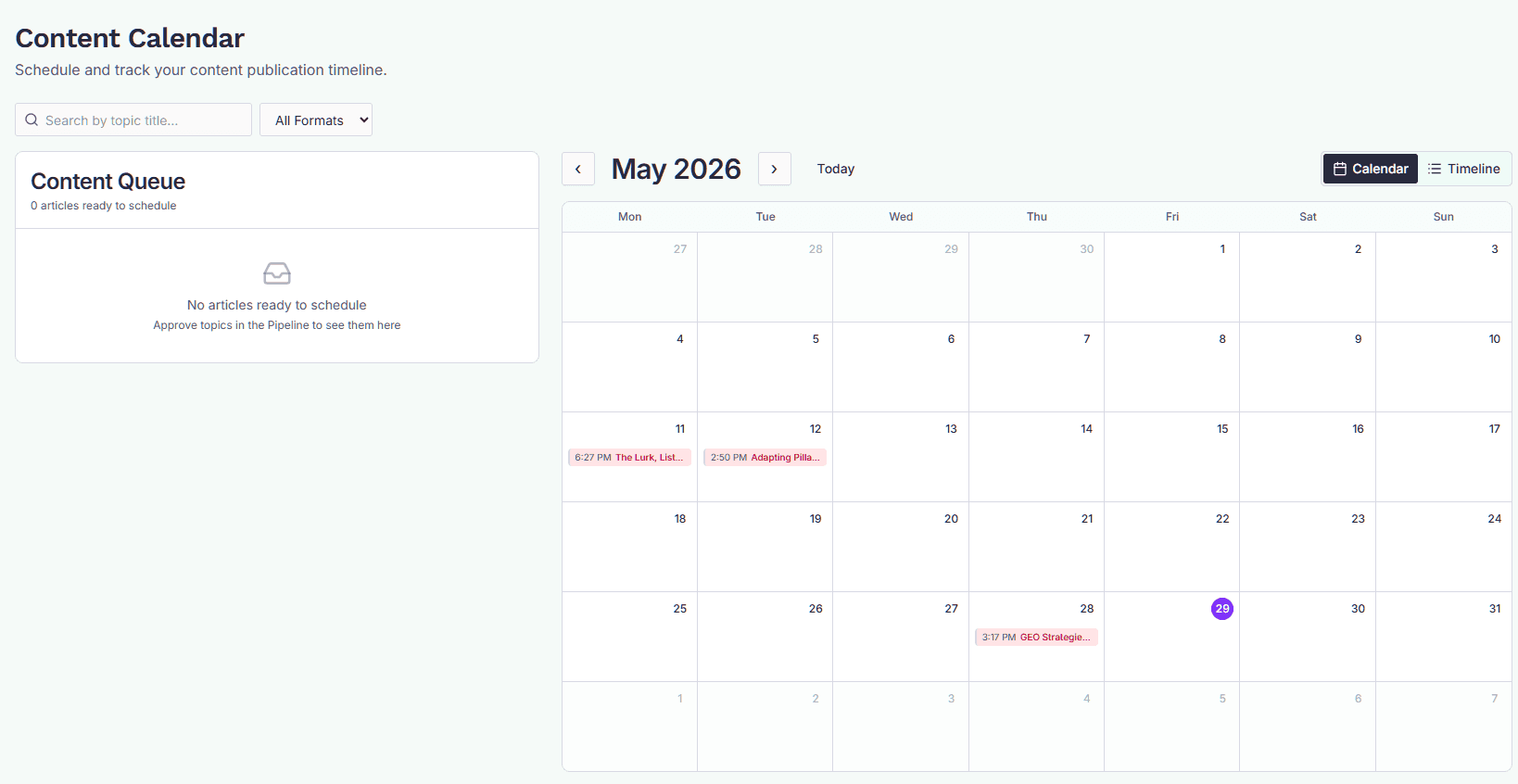
The Calendar shows your approved topics laid out by their scheduled publish date, with a queue of topics that are approved but not yet scheduled. Use it to plan when content goes live and to make last-minute changes to the publishing order.
You'll find it under ContentForge → Calendar.
What's on the page
The page splits into two areas:
- Content Queue (left) — every topic that has reached Ready for Publishing but hasn't been scheduled yet. These are ready to go; they just need a date.
- Calendar or Timeline (right) — your scheduled and published topics, plotted against the calendar.
Above both areas there's a search box and a format filter (Blog, FAQ, Case Study, How-To). Filters apply to the queue and the calendar at the same time. Click Clear filters to reset.
Calendar view vs. Timeline view
Use the toggle in the top-right of the calendar area to switch between the two.
- Calendar — a month grid. Each day cell shows the topics scheduled for that date.
- Timeline — a chronological list of the same scheduled topics. Useful when you have many topics in a month and want to read them top-to-bottom.
Use the ‹ and › arrows to move between months, or click Today to jump back to the current month. Switching months refreshes the data for the new range.
Scheduling a topic
There are two ways to schedule:
- From the queue. Find the topic in the Content Queue on the left and use its schedule action. The schedule modal opens with that topic pre-selected.
- From a calendar date. Click on any day in the Calendar view. The schedule modal opens with that date pre-filled, and you pick which approved topic(s) to drop onto it.
The schedule modal lets you pick a date and, if you have a CMS connected, the platform to publish to. Connected platforms come from the integrations you've set up in Settings — WordPress, Webflow, or Prismic.
Clicking on an empty date when you have no approved topics in the queue won't do anything — there's nothing to schedule yet.
Unscheduling a topic
You can unschedule a topic from either view. The topic moves back into the Content Queue with status approved, ready to be scheduled again on a different date.
Why a topic might not appear in the queue
The queue only shows topics in the approved status. If a topic you expected to see isn't there, check:
- It's still in Writing in Progress — move it through the pipeline and approve it first. See Content pipeline.
- It's in Ready for Review but not yet approved — approve it from the pipeline.
- It's already Scheduled — look for it on the calendar.
- It's already Published — published topics aren't part of the scheduling flow.
What scheduling does
Scheduling sets a publish date and a target CMS. When the scheduled time arrives, GEOforge publishes automatically — no action needed from you.
If you need to publish immediately instead of scheduling, do that from the topic's editor or pipeline card.
Tips
- Use the format filter when you're balancing a mix of Blog and FAQ output across the month — it's easier to spot gaps with one format on screen at a time.
- The search box matches topic titles only, not descriptions or body content.
- Switching brands resets the calendar to the current month for the newly-selected brand.