Manage your Knowledge Base
Upload, search, filter, and monitor documents in BaseForge — your company's source-of-truth content for AI grounding.
The main BaseForge page is where you load your company's source-of-truth content into GEOforge. Anything you upload here becomes available to the rest of the platform — ContentForge uses it to ground generated content, and the Entity Map and SignalForge draw on it for context. Each ready file gets an IG (information gain) score so you can see at a glance how much new value it adds to your Knowledge Base.
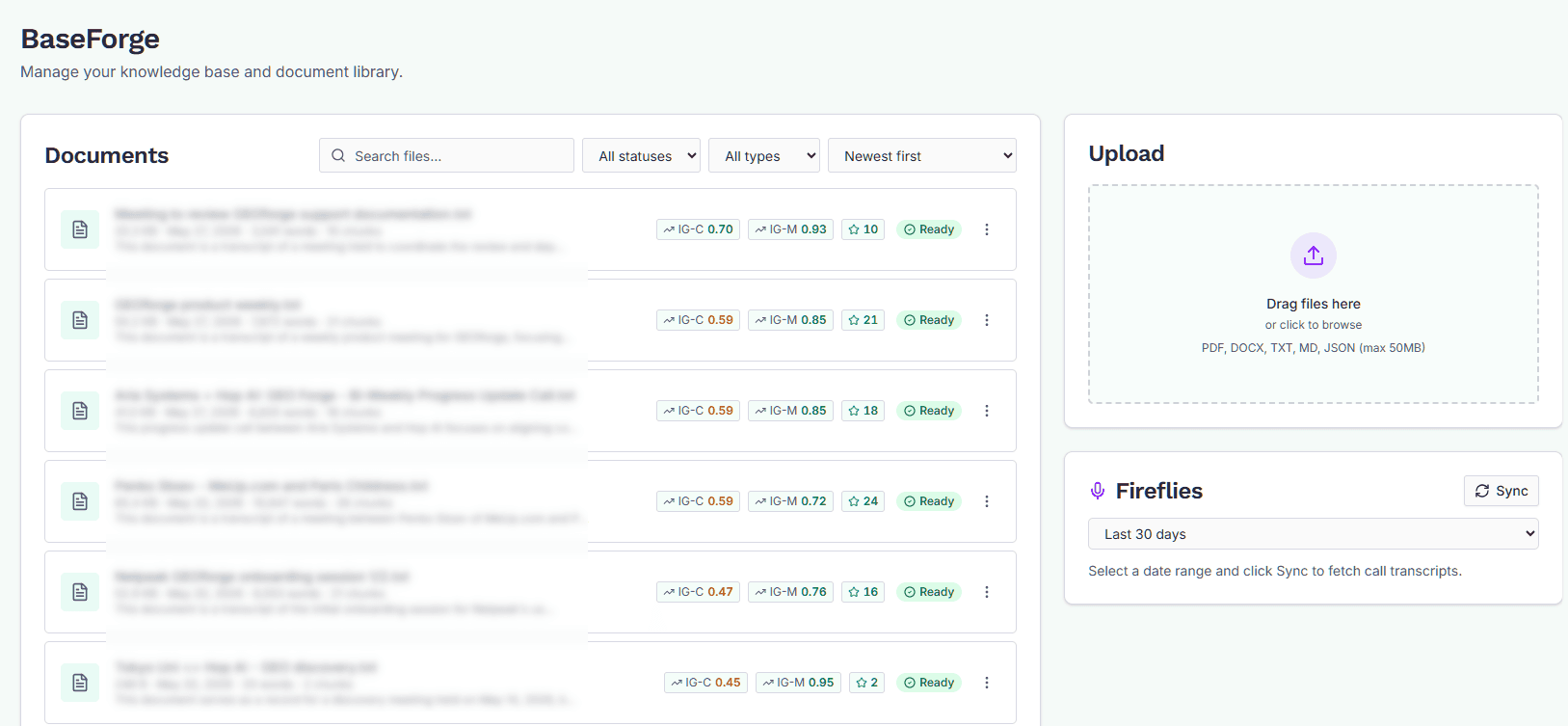
The page has three areas: Documents (left), Upload (right), and — for each meeting notetaker you've connected (Fireflies, Gong, Fathom, Granola, Avoma, Grain) — a panel below Upload. You can also capture knowledge through AI-led interviews, whose transcripts are ingested here automatically.
Uploading documents
Use the Upload card on the right to add files. Supported formats are PDF, DOCX, TXT, Markdown, JSON, and MP3 audio.
You can drop multiple files at once. Each file is queued and processed concurrently; you don't need to wait for one to finish before starting the next.
The maximum file size is 30 MB for documents and 14 MB for audio. Files over the limit are rejected before upload starts.
Uploading a call recording
Upload an MP3 and GEOforge transcribes it, then indexes the transcript exactly as it would a document — so a sales, support or discovery call becomes searchable and available to ContentForge when it writes.
The transcript keeps what was said rather than summarising it. Each speaker's turns are labelled, using their name where the recording makes it clear, and the conversation is broken into sections titled by what that stretch is actually about. A recording of about half an hour usually finishes in a minute or two.
Recordings must be under 90 minutes, and under the 14 MB audio size limit — which, for a typical phone-system recording, is comfortably more than 90 minutes of audio, but will be reached sooner by a higher-quality recording. If a file is too long or too large, split it and upload the parts.
A recording that contains no intelligible speech — hold music, a dial tone, silence — is rejected rather than stored as an empty document.
Personal details in recordings
Before a transcript reaches your knowledge base, GEOforge removes the details it can identify with confidence: email addresses, phone numbers, payment card numbers, national insurance numbers, postcodes and bank account numbers. Each is replaced with a label such as [email] or [phone], so the transcript still reads naturally. The recording's filename is cleaned the same way, which matters because phone systems often name a file after the number that was called.
Names are not removed. Removing them reliably isn't possible, and doing it aggressively would strip out the substance that makes a call worth keeping. Anything GEOforge writes for publication is separately checked for personal information before it can be approved. Bear this in mind when deciding which recordings of other people to upload.
What happens after upload
A freshly uploaded file moves through these statuses:
- Pending — queued, awaiting processing.
- Processing — GEOforge is reading and indexing the file.
- Ready — available for use across GEOforge.
- Error — something went wrong; hover the status for details.
While anything is pending or processing, a banner above the document list shows live counts and updates every few seconds. The list itself refreshes in the background, so file statuses change in place — you don't need to reload.
Searching and filtering documents
When the list has content, the toolbar above it gives you:
- Search — matches against filename.
- Filters — narrow by status (pending, processing, ready, error) or file type.
- Sort — change the order; defaults to most recently added first.
Changing any filter resets you to page 1. Pagination controls sit at the bottom of the list.
IG scores
Each ready file shows its IG (information gain) score in the document list. This score reflects how much novel, useful information that file contributes to your Knowledge Base relative to everything else already in it.
High-IG files are strong candidates for grounding. Low-IG files are usually near-duplicates of content already in your Knowledge Base — they're not harmful, but they don't add much.
Scores are recalculated automatically when new content is added that affects the surrounding corpus, so a file's score can change over time even if you don't touch it.
Importing call transcripts
Each connected notetaker (Fireflies, Gong, Fathom, Granola, Avoma, Grain) gets its own panel below Upload. The workflow is:
- GEOforge checks each notetaker for new meetings every few hours. The meetings it finds are already listed when you open the panel, waiting for you to decide. Click Sync to check now, or to look further back with the date-range menu.
- Use the search box and checkboxes to pick the meetings you want.
- Click Import to bring them into your Knowledge Base. You can import up to 100 Fireflies, 50 Granola or Grain, or 25 Gong, Fathom or Avoma meetings at a time. Admins can click Import all to import everything waiting in the background (up to 500 meetings). Imported calls land in the documents list with status
pendingand are processed like any other upload. - Use Discard to drop meetings you don't want, so they aren't offered again.
Importing a period of calls
Admins can bring in months of calls at once with Import a period… on a notetaker's panel. Setup offers the same thing, in the Knowledge Base step.
- Pick the period (the last 1, 3, 6 or 12 months), the shortest call to include, and any words whose titles should be left out, such as "1:1" or "standup".
- Click Check to see how many calls match before anything is imported. Calls whose length the notetaker doesn't report are included.
- Click Import to bring them in the background. Progress shows how many have been imported. Notetakers limit how fast calls can be fetched, so a large import can take a while. GEOforge says roughly how long, and the import carries on if you leave the page.
During a trial, up to 50 calls can be imported from notetakers in total, because each one is processed by AI. The check shows how many places are left. Contact us to raise the limit for a pilot.
Nothing is imported without someone choosing it. Internal-only meetings (everyone on your side), which tend to carry HR and pricing talk, are never imported. Notetakers' own AI summaries aren't imported either, only the transcript, because they name people outside the speaker labels that keep customers and prospects out of published content.
When a call is imported, each speaker is labelled as your own team or as a customer or prospect, and email addresses and phone numbers are removed. Published content never names a customer or prospect heard on a call. The questions buyers ask on your calls are also collected for SignalForge and the Strategist. See What buyers ask on your calls.
When a call is deleted in your notetaker
A call you delete in any connected notetaker also leaves your Knowledge Base. GEOforge checks each imported call with its notetaker about once a week, a limited number a day so the checks never use up the notetaker's API allowance. Most deletions are picked up within a week. A large Fireflies library takes longer, because Fireflies allows few API requests a day. A call the notetaker no longer has is removed, along with its share of the buyer questions mined from it. A buyer question you already track as a prompt, or that a content topic answers, stays. The Activity feed records each removal.
To protect your knowledge base, GEOforge removes a call only when the notetaker clearly says it no longer exists:
- If the notetaker can't be reached or rejects the connection, nothing is removed.
- A call is removed only by the same API key that imported it. A different key may not see every call (a personal key sees only its owner's), so the calls it can't see would look deleted. Once the current key has seen a call, it can remove it later.
- If many calls look deleted at once, nothing is removed, and the notetaker's settings explain why.
To remove a call straight away, delete it in BaseForge (below).
To connect a notetaker, your administrator goes to Settings → Integrations.
Deleting documents
Each row has a delete action. Deleting a file removes it and its chunks from your Knowledge Base immediately. There's no undo, so be deliberate — particularly for files that are heavily cited by existing generated content.
When the list is empty
If you haven't uploaded anything yet, you'll see an empty state in the Documents area that points you to the Upload card. If you've applied filters that match nothing, you'll see "No documents match your filters." instead — clear the filters to see everything.