Entity Map
Visualize the entities, categories, hubs, and gaps in your knowledge base, and refresh the map when content changes.
The Entity Map scans your BaseForge documents and shows found entities (products, people, topics, competitors, concepts), their categories, and areas of content strength or weakness.
You'll find it under BaseForge → Entity Map.
What you see on the page
When a map exists, the page shows:
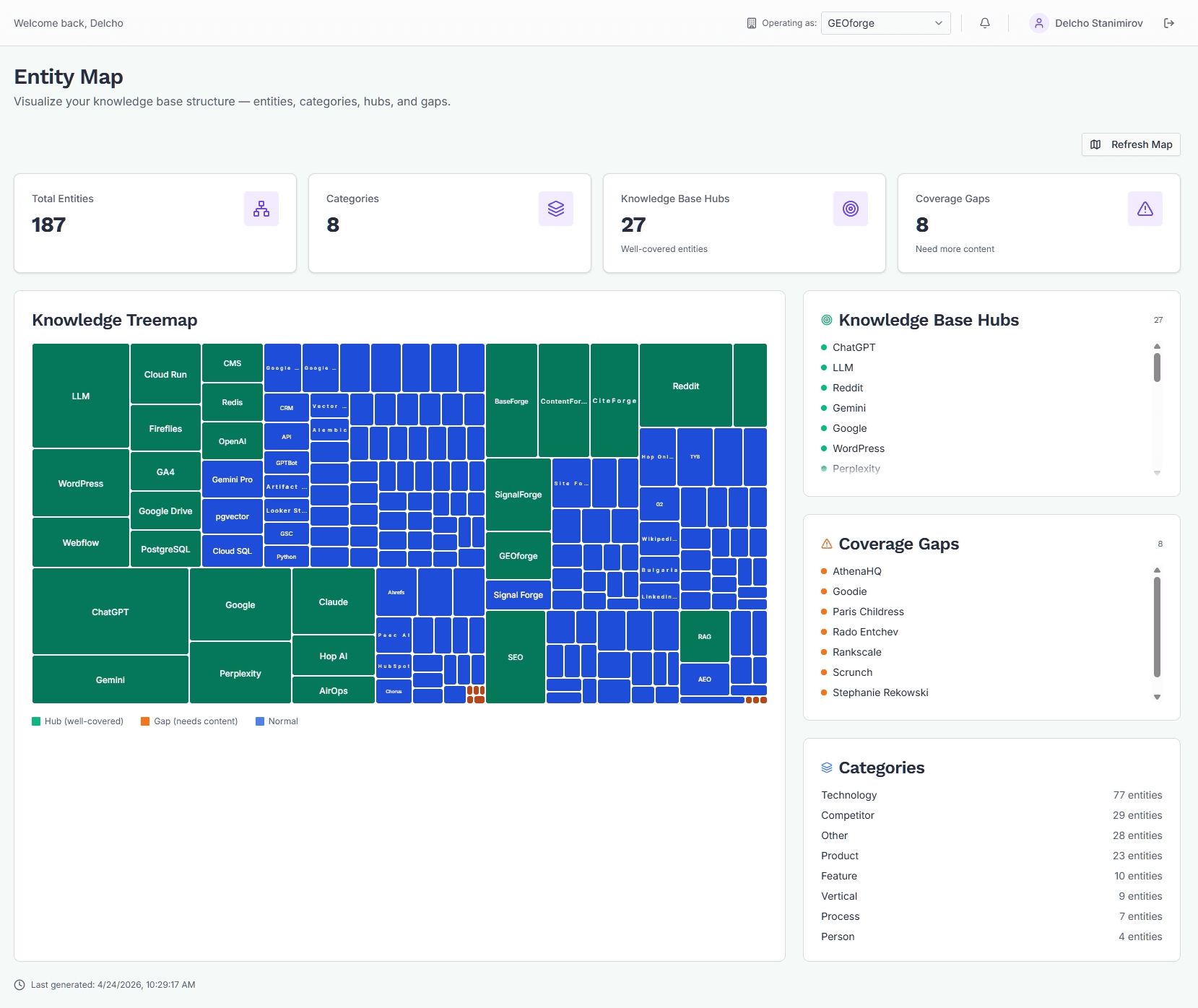
- Four stat cards — Total Entities, Categories, Knowledge Base Hubs, and Coverage Gaps.
- Knowledge Treemap — shows entities grouped by category. Tile size means mention count; color shows status.
- Knowledge Base Hubs — a list of entities you cover well.
- Coverage Gaps — a list of entities that are mentioned but thinly covered.
- Categories — a count of entities per category, sorted by size.
- Last generated timestamp at the bottom of the page.
Reading the treemap
Each tile in the treemap is one entity. Categories appear as labeled background regions.
- Green tiles (Hub) — entities you cover well. These are your strengths.
- Orange tiles (Gap) — entities that appear in your content but only thinly. These are where adding more depth tends to have the biggest payoff.
- Blue tiles (Normal) — entities with average coverage.
Hover any tile to see the entity name, description, mention count, and status. Larger tiles mean more mentions in your knowledge base.
Generating the map for the first time
If you've never run the mapper, you'll see an empty state with a Run Entity Mapper button.
- Upload documents to BaseForge first — the mapper has nothing to work with if your knowledge base is empty.
- Click Run Entity Mapper.
- A progress banner appears: "Entity mapping in progress — this may take a few minutes."
- The page polls in the background and updates automatically when the map is ready. You can navigate away and come back; if it's still running, you'll see the banner again.
A run typically takes a few minutes depending on how many documents are in your knowledge base.
Refreshing the map
If new data exists, Refresh Map appears in the top-right corner. Use it after knowledge base changes, such as uploads, imports, or deletions.
A refresh replaces the previous map. The Last generated timestamp at the bottom of the page tells you how current the map is.
You can trigger a run at most twice per minute. If you hit that limit, wait a moment and try again.
When something goes wrong
If a run fails, you'll see an error banner at the top of the page with a Dismiss button. Common causes:
- Knowledge base is empty — upload some documents and try again.
- Processing timed out — the mapper auto-recovers runs that get stuck for more than 10 minutes by marking them as failed. Just click Refresh Map to try again.
- Task queue unavailable — a transient infrastructure issue. Wait a minute and retry.
If a refresh fails, your previous map stays intact — you won't lose data.
How to act on the map
A few patterns customers find useful:
- Sort by gaps first. The Coverage Gaps list tells you which entities you mention but don't really explain. These are usually the highest-leverage places to add content.
- Check that your hubs match your positioning. If your hubs are dominated by competitor names or off-topic concepts, your knowledge base may be telling a different story than you think.
- Watch categories for surprises. A category you didn't expect to see (or one you expected to see and don't) is a signal that the mix of source content is off.