AI interviews
Generate interview topics from your knowledge base, approve questions, and run text or voice interviews that feed back into BaseForge.
AI interviews let you capture knowledge that lives in people's heads — process details, decisions, operational context — and turn it into BaseForge content. You build a topic, approve a set of questions, then run a text or voice interview. The completed transcript is saved as a BaseForge file and ingested automatically.
Open it from the Interviews card on the BaseForge page.
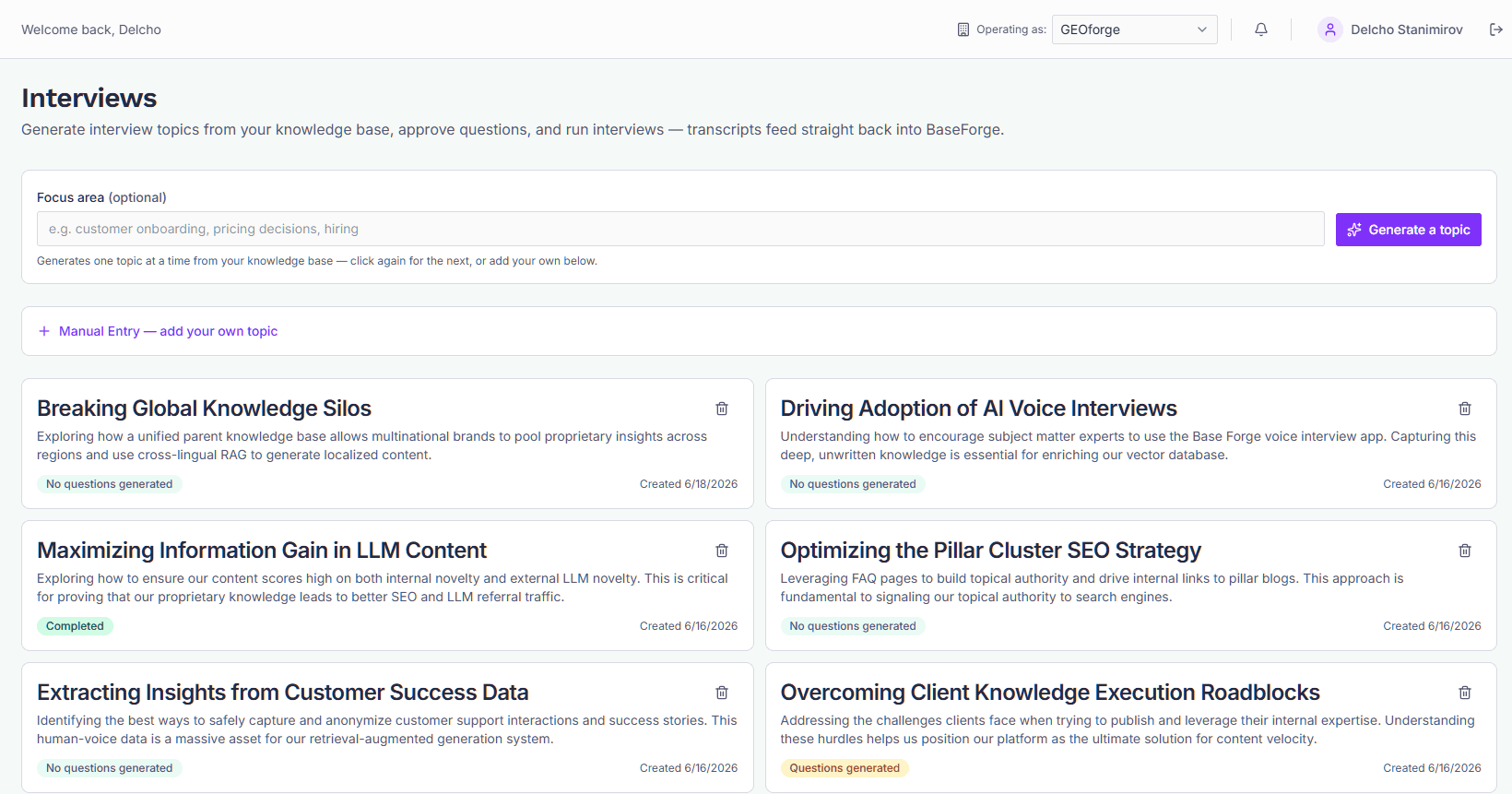
Creating topics
There are two ways to create a topic.
Generate from your knowledge base. Enter an optional focus area (for example, "customer onboarding" or "pricing decisions") and click Generate a topic. GEOforge pulls relevant content from your knowledge base and proposes one topic at a time. Click again for the next one — each generation avoids repeating topics already on the board.
If you get "No topic generated", your knowledge base is likely empty for the current brand. Topics are only built from your own content, never invented from general knowledge.
Manual Entry. Click Manual Entry — add your own topic to write your own. You supply:
- A topic title (required).
- A description.
- AI Context/Instructions — guidance for how the interviewer should conduct the conversation.
- Questions, one per line (optional).
If you include at least one question, the topic is approved on creation and ready to interview immediately. A manual topic with no questions stays unapproved until you add and approve some.
Questions and approval
Open a topic to manage its questions.
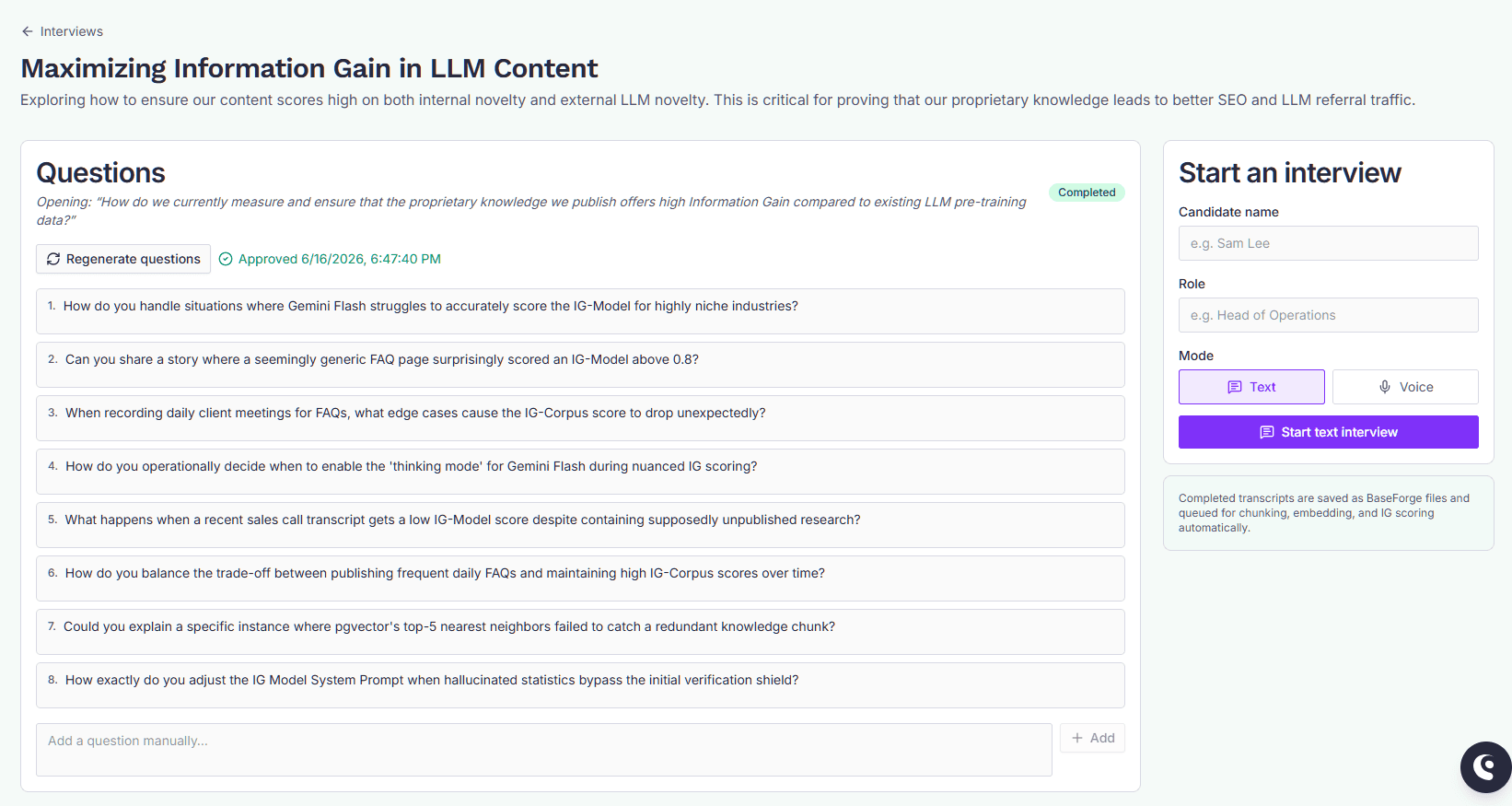
Click Generate questions to draft a set from your knowledge base, or Regenerate questions to replace the current set. You can also add questions manually, edit them inline, and delete them.
The interviewer covers every question you approve, so the size of the set sets the length of the interview. Delete any question that doesn't earn its place rather than leaving it in the list.
Questions must be approved before you can start an interview. Click Approve questions once you're happy with the set. Any change after that — generating, adding, editing, or deleting — clears the approval, and you'll need to approve again.
A status badge on each topic reflects where it is:
- No questions generated
- Questions generated — drafted but not yet approved
- Questions approved — ready to interview
- Interview in progress
- Completed
Interview language
Each topic has an Interview language: the language the interviewer speaks, in text and voice interviews and on share links. New topics start with your brand's content language, set under Settings. Change it with the Interview language picker next to Generate a topic before you add a topic, or on the topic page at any time.
- Topics and questions generated for a topic are written in its language.
- Questions written in another language are still asked in the topic's language. The interviewer translates them as it goes, so you can keep an English question set and interview someone in Spanish. Regenerate the questions if you also want them written in Spanish.
- If the interviewee answers in a different language, the interviewer keeps asking in the topic's language unless they ask it to switch.
- The transcript is saved in the language that was spoken. It is never translated.
- No fixed language leaves the choice to the interviewer, which is how topics behaved before this setting existed. In practice that usually means English.
Starting an interview
In the Start an interview panel on the topic page, optionally enter a candidate name and role, then choose a mode:
- Text — a typed chat conversation.
- Voice — a spoken conversation using your microphone.
Click Start to open the interview session. If the questions aren't approved yet, the panel tells you so and the controls stay disabled.
Text interviews
The session is a chat. Type a message and press Enter to send (Shift+Enter for a newline). The interviewer asks one question at a time and follows up based on your answers. Prepared questions are listed in the sidebar for reference.
The conversation autosaves after every reply, so refreshing the page or coming back later resumes where you left off.
When the interviewer has covered the topic, a wrap-up cue appears telling you the interview has concluded. Click Complete & ingest to save the transcript to BaseForge — or keep typing if you have more to add.
Sharing an interview with an expert
The person worth interviewing often has no GEOforge account. Once a topic's questions are approved, the Share with an expert card on the topic page creates a link you can send them.
They open it, give their name and role, choose voice or text, and run the interview themselves. No login, and they never see anything but that one topic.
- Their name and role are recorded, so the transcript is attributed to them rather than to "Interviewee".
- They can stop and come back. Reopening the link resumes the interview in progress rather than starting a new one.
- You're notified when they finish, and the transcript appears in BaseForge as usual.
- One live link per topic. Creating a new one withdraws the old.
- Links last 30 days and can be withdrawn at any time with Withdraw link. Withdrawing stops new interviews; anything already recorded is kept.
- Several people can use the same link — each gets their own interview. The card shows how many have started against the link's limit.
Send links only to people you intend to interview: anyone holding one can start an interview on that topic.
Voice interviews
Voice interviews run in your browser. Allow microphone access first, then click Tap to start voice interview. The interviewer speaks and listens; you reply out loud.
During the session you can:
- Mute your microphone.
- Pause and resume.
- Adjust playback volume.
A live transcript preview appears in the sidebar. Sessions are capped at one hour total.
The interviewer works through every prepared question before it wraps up, so plan for roughly a minute per question — a 20-question topic runs 15–25 minutes. If you'd rather keep sessions short, use fewer questions per topic and create more topics.
If the connection drops, a red banner appears and recording stops. Stop talking until it clears — anything said while it's showing is not captured. GEOforge reconnects automatically and the interviewer picks up where it left off. If it can't reconnect, press the red stop button to save what was captured.
When a session reaches the one-hour cap the status line reads "Session ended" — press the red stop button to save. Reconnection doesn't extend the cap.
When you're done, press the red stop button to finalize. GEOforge cleans up the spoken transcript — fixing recognition errors and merging fragments — before saving it. This is why voice completion takes a moment longer than text.
What happens on completion
When an interview completes, its transcript is saved as a file in your BaseForge document library and queued for chunking, embedding, and IG scoring — the same path as any other document. From the topic page you can:
- View a completed transcript in BaseForge.
- Download it as a
.txtfile. - Delete the interview record. Deleting the record keeps the ingested transcript file in BaseForge.
Deleting a topic removes its questions and interview links, so do that only when you no longer need them.